
FET in your browser: pusulaTab checks your file and finds a timetable
Open your FET file in the browser. A free page checks it, searches for a timetable with FET's own algorithm, and exports the timetable as web pages.
You enter the last activity into FET. You click Generate, and you wait. Sometimes the timetable comes in a minute. Sometimes the count stops at 140 of 144, and it stays there.
Sound familiar? Then you know the next part too. You look at the rules one by one. You remove a rule, try again, and put it back. The computer in the school office runs for an hour, and you are not sure that it is still working on something useful.
And when the timetable is finally ready, a new job starts. Every teacher, every student group and every room needs its own page. The school website needs a copy, and so does the notice board.
FET, the free timetabling software by Liviu Lalescu and Volker Dirr, does the hardest part of this work. You can download it from its official website. This article shows a new free page on FET Viewer that helps you before and after FET's search: it checks your file, searches for a timetable in your browser, and turns the result into web pages.
What is new: FET's search, in a browser tab
The check page now runs FET's own algorithm in your browser. The program is called pusulaTab. It is FET's command-line program, compiled so that it runs in a web browser. We added reports, and the search is FET's own. Its source code is free, under the GNU Affero General Public License, version 3: see Tools for FET.
Here is the catch most people ask about first: where does the file go? Nowhere. The page works inside your browser tab. Your .fet file stays on your device, and the page does not send it to a server. The site counts the visit and how each search ended, and nothing more.
You need no account, and you install nothing.
Step 1: the check
Open the page and drop your .fet file on it, or click "Open a .fet file".
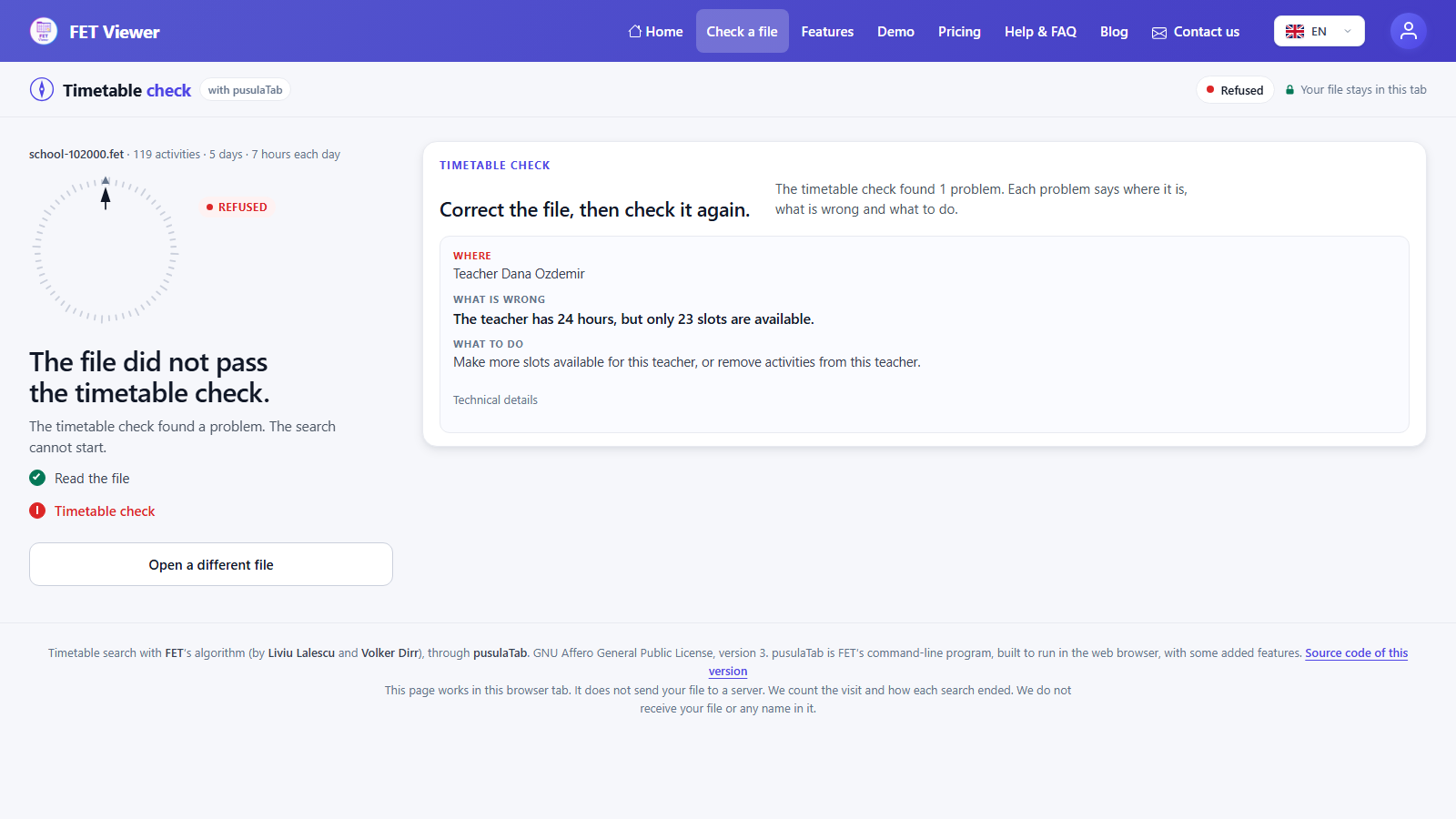
Before the search, the page runs FET's own checks on the file. In FET, the check stops at the first kind of problem that it finds. You correct those problems, you start again, and FET shows the next kind. The page shows all the problems that FET finds in one run, in one list and in plain words: where the problem is, what is wrong and what to do. After a correction, FET can check further and find a new problem. In one invented test school, it named a teacher with 24 hours of activities and only 23 free slots, and it said what to do: make more slots available for this teacher, or remove activities from this teacher.
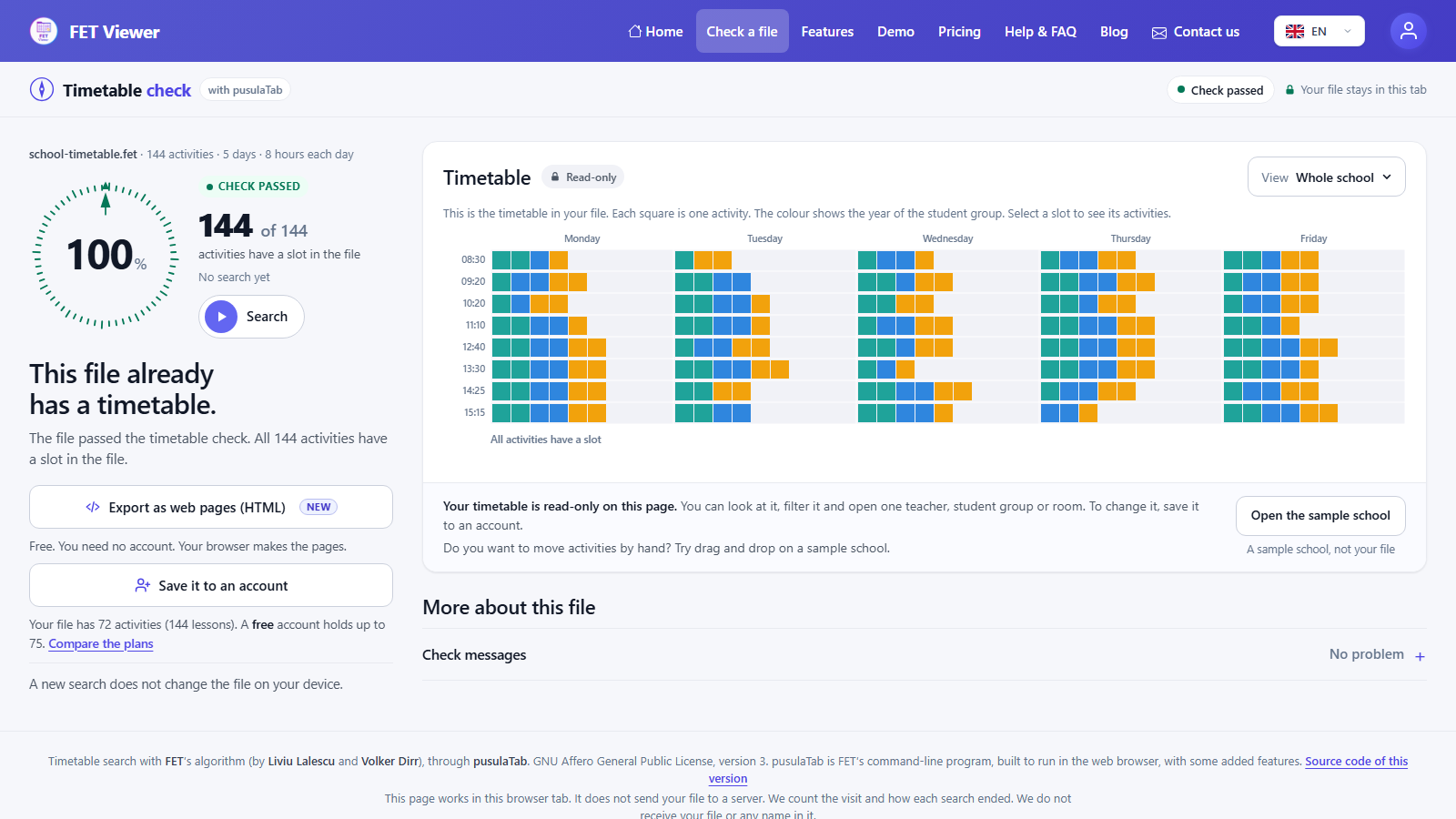
If the file already holds a timetable, the page shows it at once. You can look at it, export it, or start a new search.
Step 2: the search
If the file passes the check, the search starts. pusulaTab puts each activity in a slot, and you see each step: the count of activities with a slot goes up, second by second.
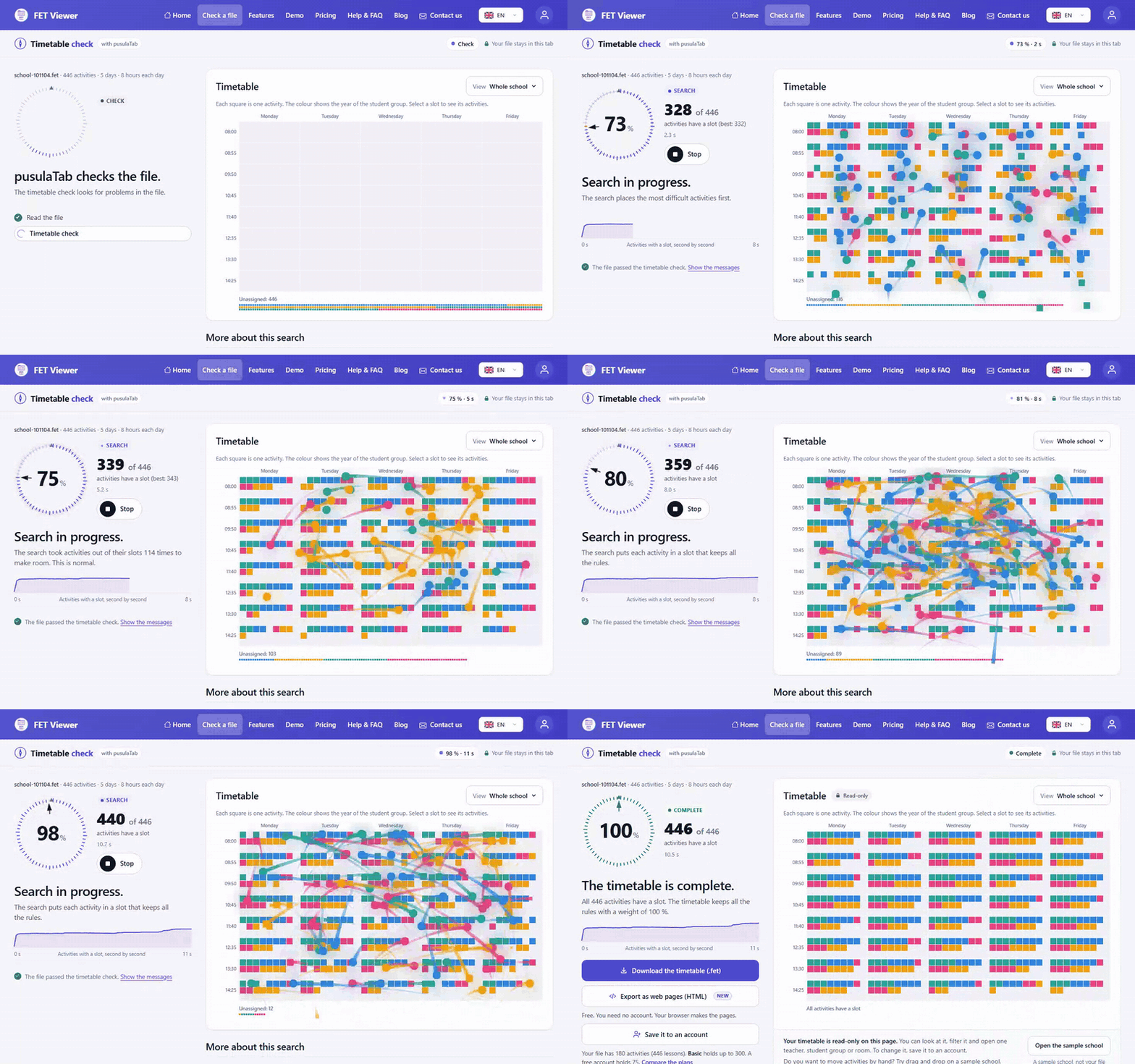
The picture above is a real search on the page, for an invented school with 446 activities. The search places the most difficult activities first. Then it moves activities out of their slots to make room for others. In this run, it did that more than 250 times, and the page tells you that this is normal. After about 10 seconds, all 446 activities had a slot.
For our smaller sample school, Northgate Academy, the search was even shorter: all 144 activities had a slot almost at once. A large school with many rules takes longer, just as in FET.
And when the search does not finish? The page does not leave you guessing. If the search is slow, the page says so, and the search continues. You can wait, or you can select "Show what you can change".
Here is the part that saves the most time. Often, one or two activities hold up the whole timetable. Other activities take them out of their slots again and again, or the search finds no possible slot for them. The page names these activities, says how often this happened, and offers "Search without this activity". Each suggestion says how sure it is: "Proven", "Measured" or "A guess". The page can also test each change alone, so you switch off only what is really needed.
Select one or more changes, and search again. The page switches the activity off with FET's own "Active" box, in its copy of your file. Everything else stays the same. So you get a complete timetable for all the other activities, and only the hardest ones are left for you. In the downloaded file, they are still there, switched off. Switch them on again later, and place them by hand: in FET, or in the FET Viewer app. The file on your device does not change.
You can also select "Stop" at any time. Then select "Download the timetable so far (.fet)". In that file, each placed activity is locked in its slot, and the other activities stay in the file without a slot. FET reads the file and keeps every lock, so you can continue there.
Sometimes a timetable is not possible at all. Then the page says "One activity has no possible slot." It tested every slot for that activity, and a rule blocks each one. This is not a dead end. The page offers to switch that activity off, and it says why: "Without this activity, the search can continue." Select it, search again, and you get a timetable for everything else. The activity stays in your file, switched off, and you place it by hand later. Under "More about this search", the page lists the activities with no free slot and the activities that pushed other activities out. When the search took an activity out of its slot, pusulaTab names the rule that needed that slot.
Step 3: the timetable
When the search ends, you see the complete timetable for the whole school. Each square is one activity, and the colour shows the year of the student group. Select a slot to see its activities, or change the view to one teacher, one student group or one room.
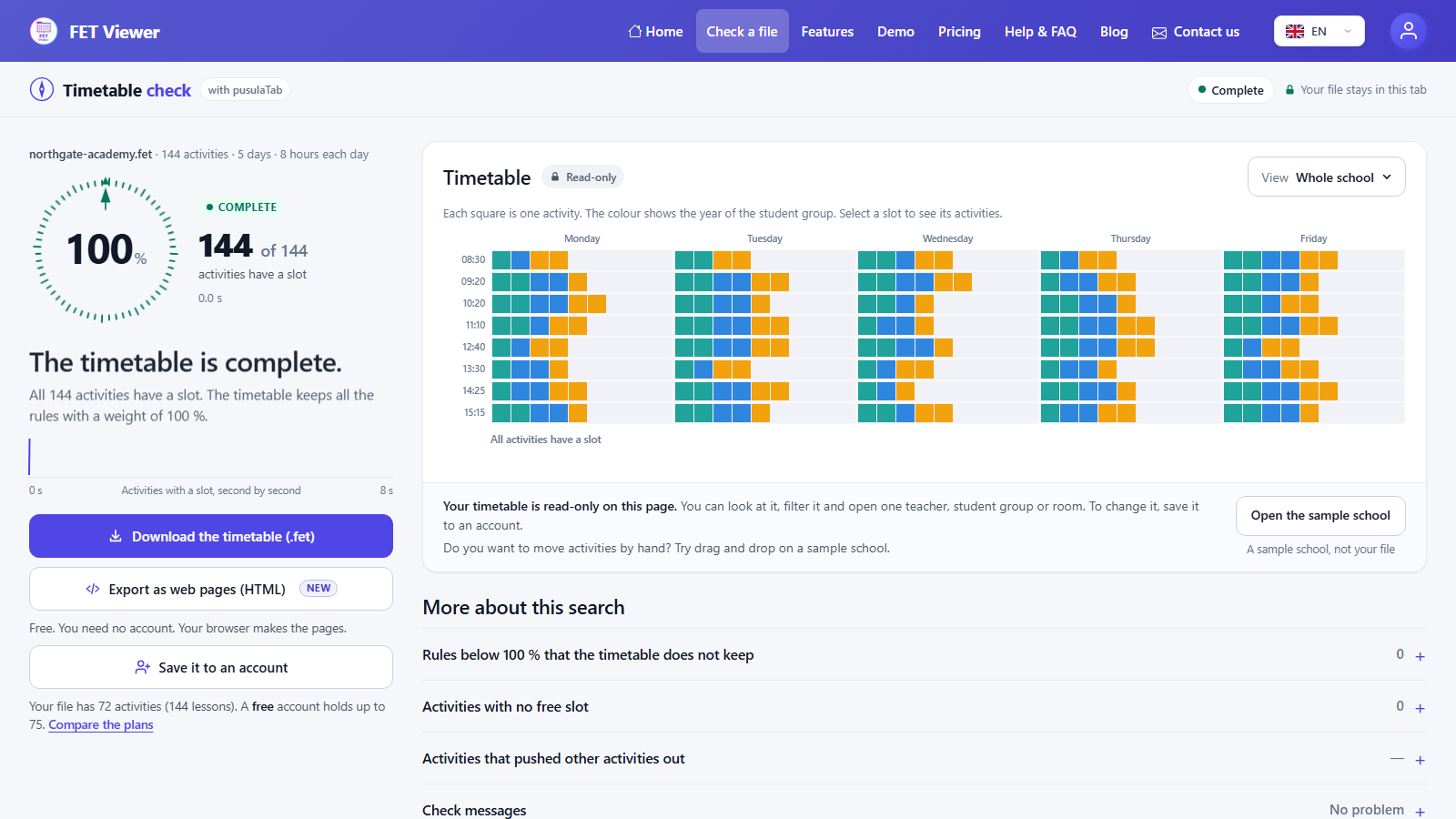
Now you have two choices. "Download the timetable (.fet)" gives you the file back with the timetable inside, ready to open in FET. "Export as web pages (HTML)" is the second new part of this release.
Export the timetable as web pages
FET users know the pages that FET writes after a search: one page for each teacher, student group and room. The new export makes these pages in your browser, and you choose how they look.
The export window has four steps.
1. Style. Choose between two styles. "Classic" makes many pages: one for each teacher, student group and room, plus an index page, in one .zip file. For Northgate, that is 34 pages. "FET Viewer style" makes one interactive page. The reader browses the teachers, student groups, rooms, subjects and activity tags in that one file.
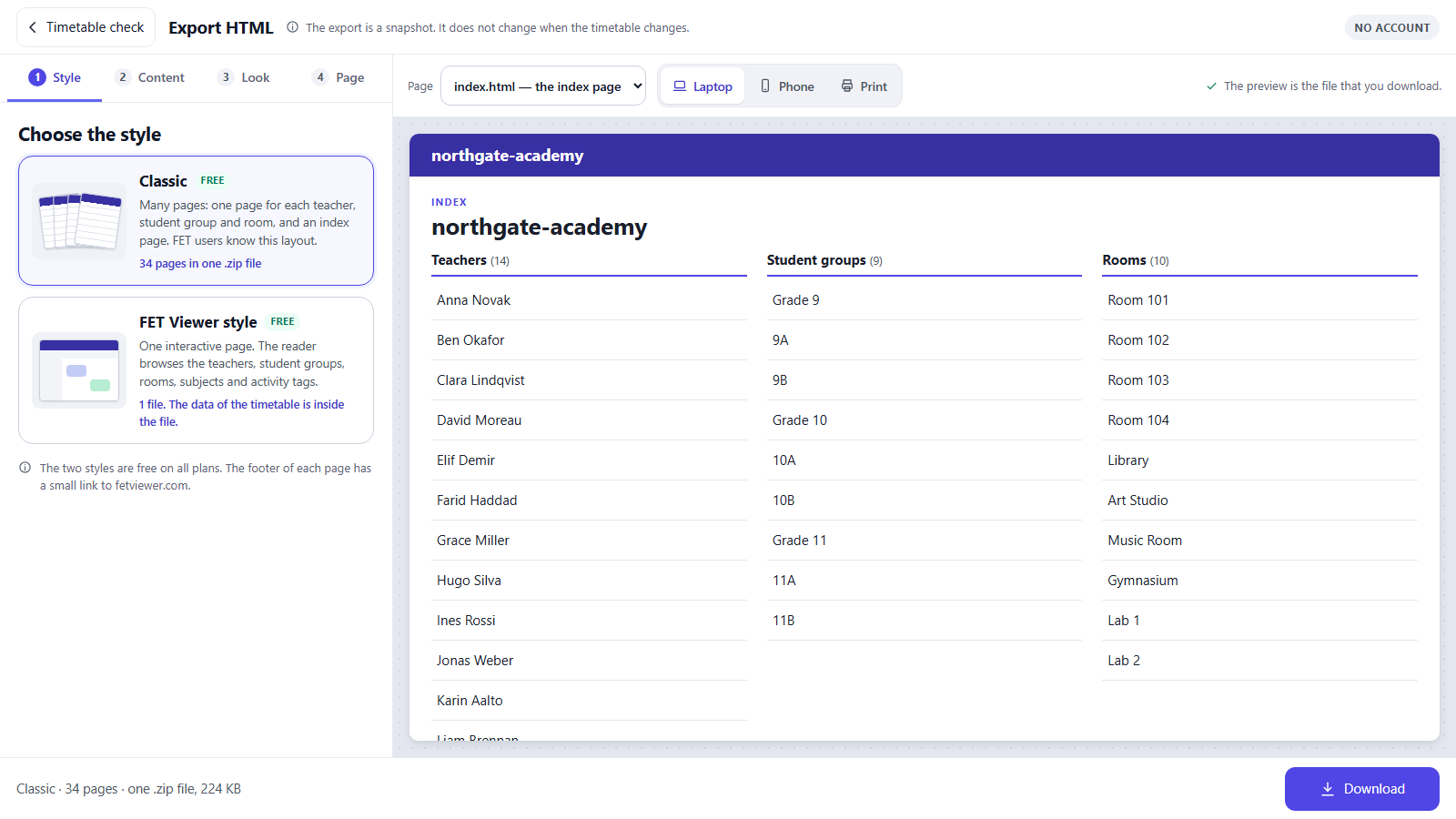
2. Content. Choose which pages you need: teachers, student groups, rooms, subjects and activity tags, and the names in each list. You also choose what each activity shows: the subject, the teacher, the student group, the room and the activity tag.
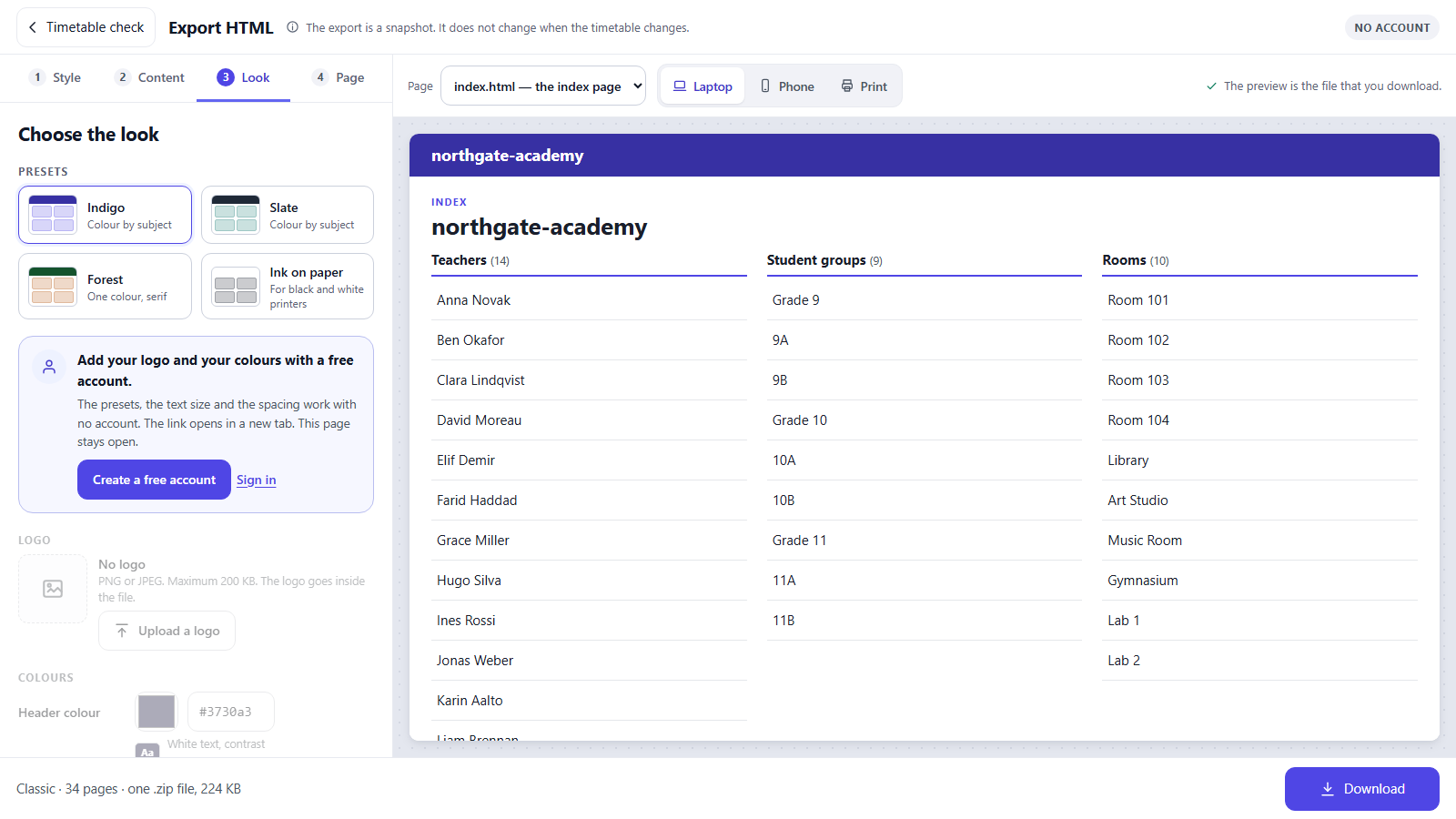
3. Look. Start from a preset: Indigo, Slate, Forest, or "Ink on paper" for black-and-white printers. Then change the font, the text size and the spacing. With a free account, you can also add your school logo and your own colours. The page shows the contrast of each colour, so the text stays easy to read.
4. Page. Add the school name and a title. You can show the date of the export in the footer. The labels use the language of the site, and the names in your timetable do not change.
On the right, you see a preview as a laptop, a phone or a printed page. The preview is the file that you download. The printed page is A4, landscape, and the buttons and menus do not print.
Both styles are free on all plans. Each page has a small link to fetviewer.com in the footer. The export is a snapshot: it does not change when the timetable changes.
What this page does not do
It does not replace FET. You still build your data in FET: the teachers, student groups, rooms, activities and rules. The check page uses FET's algorithm, and FET reads the file that you download.
The page is also read-only. To move activities by hand, open the timetable in the FET Viewer app. You can try that on the sample school.
Try it with your own file
Open the check page and drop your .fet file on it. It takes a minute, and your file stays with you.
If you find something that FET does differently, please tell us on the FET forum. FET is free software, and it depends on donations: if it helps your school, please support its authors.