
Next term, start from this one: clone it or merge it
Clone a timetable to start a new term, or bring only the standing rules into another one. What travels, what stays behind, and how to go back.
The same facts, every term
Each new term, a timetabler enters the same facts again. A teacher does not work on Friday mornings. The gym is closed on Wednesday afternoons. A teacher teaches 21 hours at most. These facts belong to the school, not to the term. FET Viewer gives you two ways to keep them: clone and merge.
Clone: an independent copy
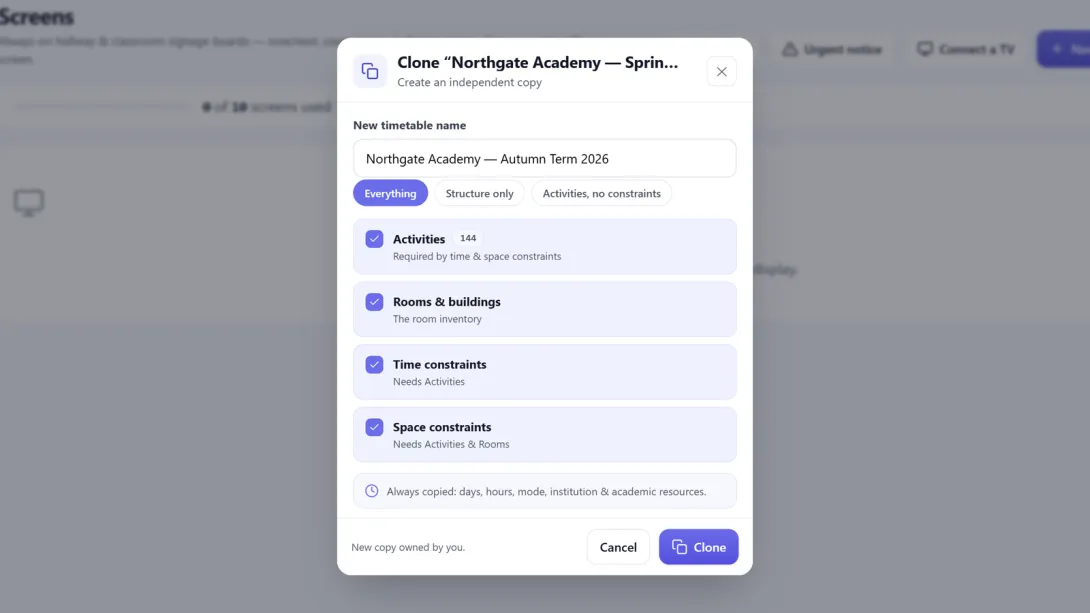
On the dashboard, open the ⋮ menu of a timetable and select Clone. Give the copy a name. Then choose how much to bring:
- Everything — the activities, the rooms and all constraints.
- Structure only — days, hours, teachers, subjects, student groups and rooms. No activities.
- Activities, no constraints — the activities and rooms, without time or space constraints.
The copy belongs to you, and it is independent. A change in the copy does not change the original. Each plan has a limit on the number of timetables. At the limit, the menu shows you the upgrade instead.
Merge: bring content into a timetable you have
Open the ⋮ menu of the timetable that must receive the content, and select Merge into this. Then select the source. You can merge only timetables that you own, on both sides.
You choose one of two jobs:
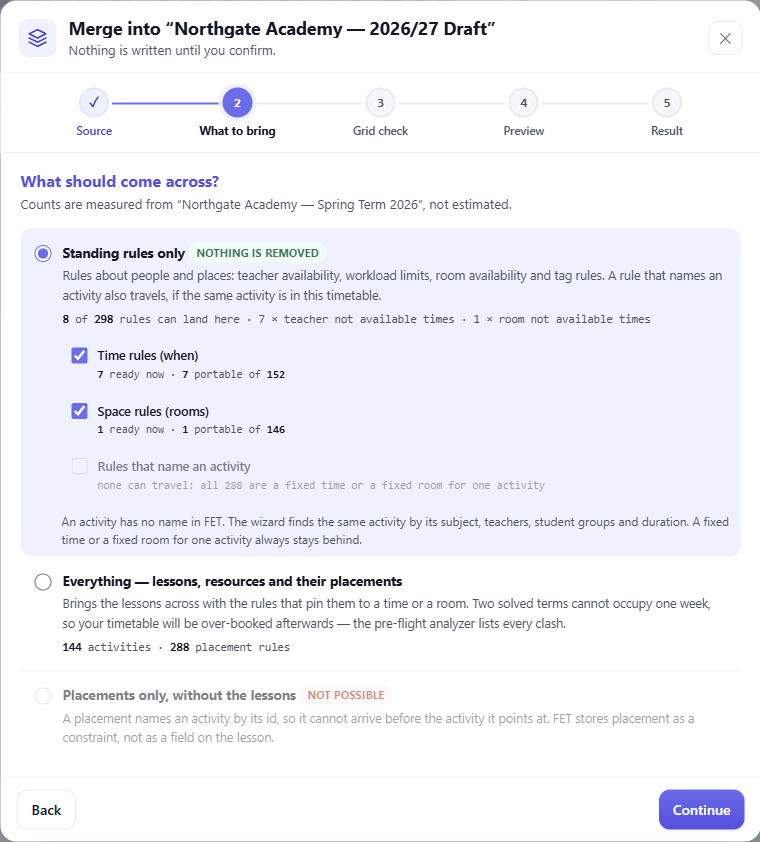
- Standing rules only — staff availability, workload limits, room availability and tag rules. Nothing is removed, and no activities are created. This is available on every plan.
- Everything — the activities as well, with the constraints that place them. This needs a Basic plan or above. After this merge, the timetable is over-booked: two solved terms cannot fit in one week.
What travels, and what stays
A merge brings the rules that belong to the school: teacher availability, workload limits, room availability and tag rules. A timetabler enters these rules again each term. A rule can also name one activity, for example "this activity not on Friday". That rule travels when the receiving timetable has the same activity: the same subject, teachers, student groups and duration. A fixed time or a fixed room for one activity stays behind. The wizard counts the rules that can travel before you confirm. A rule also needs every name in it to exist in the receiving timetable.
Two terms of the same school
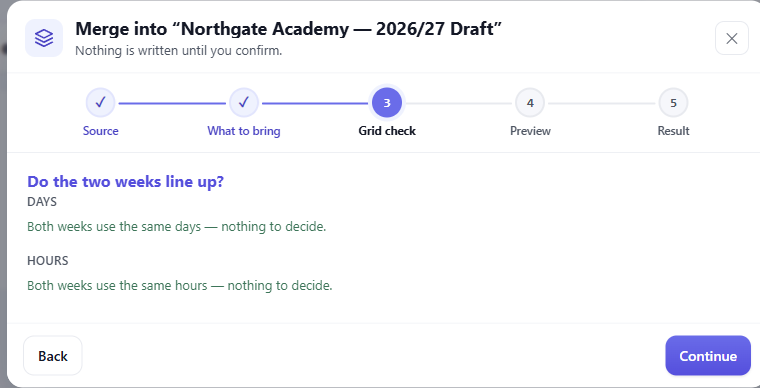
Merge works best between two terms of the same school, where the days and hours have the same names. The wizard compares the days and hours before it writes anything. If some are missing, it can create them.
The restore point is the undo
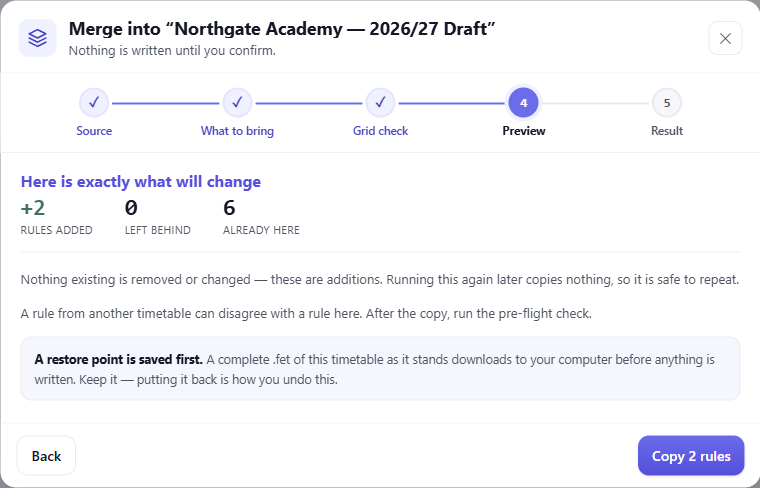
Before the merge writes anything, a .fet file of the receiving timetable downloads to your computer. There is no undo button. To go back, import that file again. If your browser asks where to save the file, answer it.
Keep last term's file
Download last term's .fet and keep it. With that file, you can always start again.