
One notice, on every screen and on the website
Write a notice once. It shows on your school screens and on your timetable website, where you choose, from the start date to the end date.
A change of plan reaches some people and not others. One notice, written once, can reach all of them.
On Monday morning the sports hall is closed. The office sends an email. Some teachers read it, and some do not. One student group walks to the sports hall anyway, because the corridor screen shows a normal day.
The timetable on that screen is correct. The problem is the notice. It is in an email, and the people in the corridor do not read email.
Write it once, choose where it shows
Announcements put your own notices on the same displays as the timetable: the screens on your walls and the timetables on your school website. You write a notice one time, in one place. Then you choose where it shows:
- on every screen and every embed,
- on the screens of one building,
- on one screen,
- on one embed.
A screen can belong to a building. So the entrance hall can show the notices of the whole school, and a corridor screen in the science building can show only the notices for that building.
You find Announcements on the data page of your timetable, under Share & display.
Four kinds of notice
Each announcement has a type:
- Text: a short notice in the style of the board.
- Poster: an image that you upload, for example the poster for the school concert.
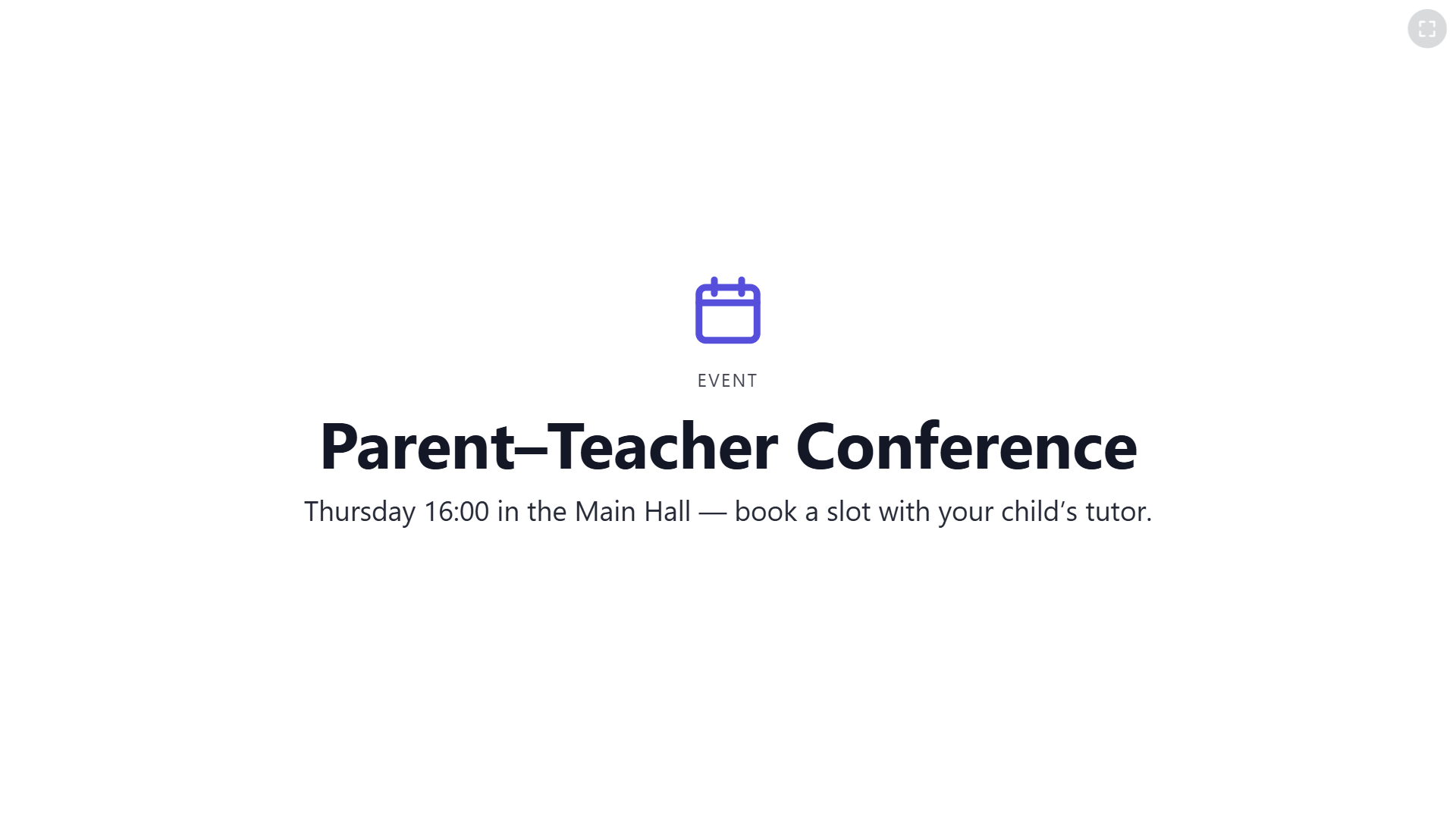
- Event: a notice with a calendar icon. Write the date and the time in the title or in the caption.
- Link: a web address. The screen shows it as a QR code, so a person can open it with a phone.
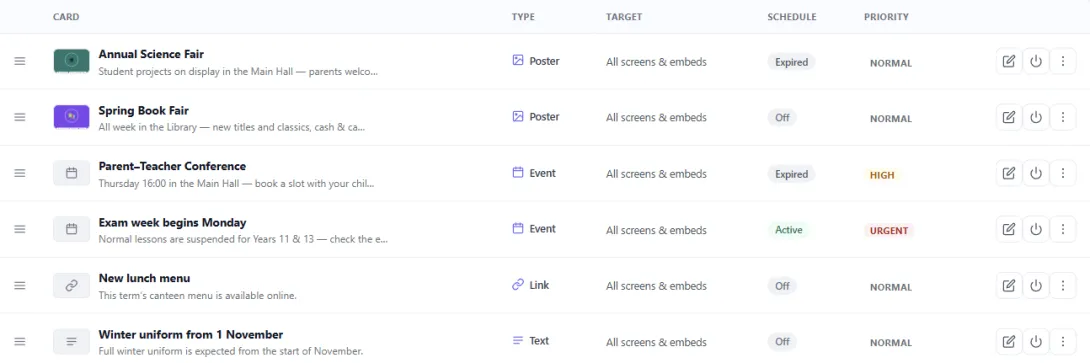
The announcements are a list. Drag an entry up or down to change the order.
It appears and disappears by itself
Every announcement can have a start date and time, and an end date and time. Before the start and after the end, the notice is not on the board.
This is the difference between a display that you maintain and a display that you set up once. In September, add the notice for sports day with its own dates. It appears in the week before sports day, and it goes away after the day. Nobody has to remember to remove it.
Each screen shows them in its own way
The best way to show notices depends on the place. So you choose it for each screen:
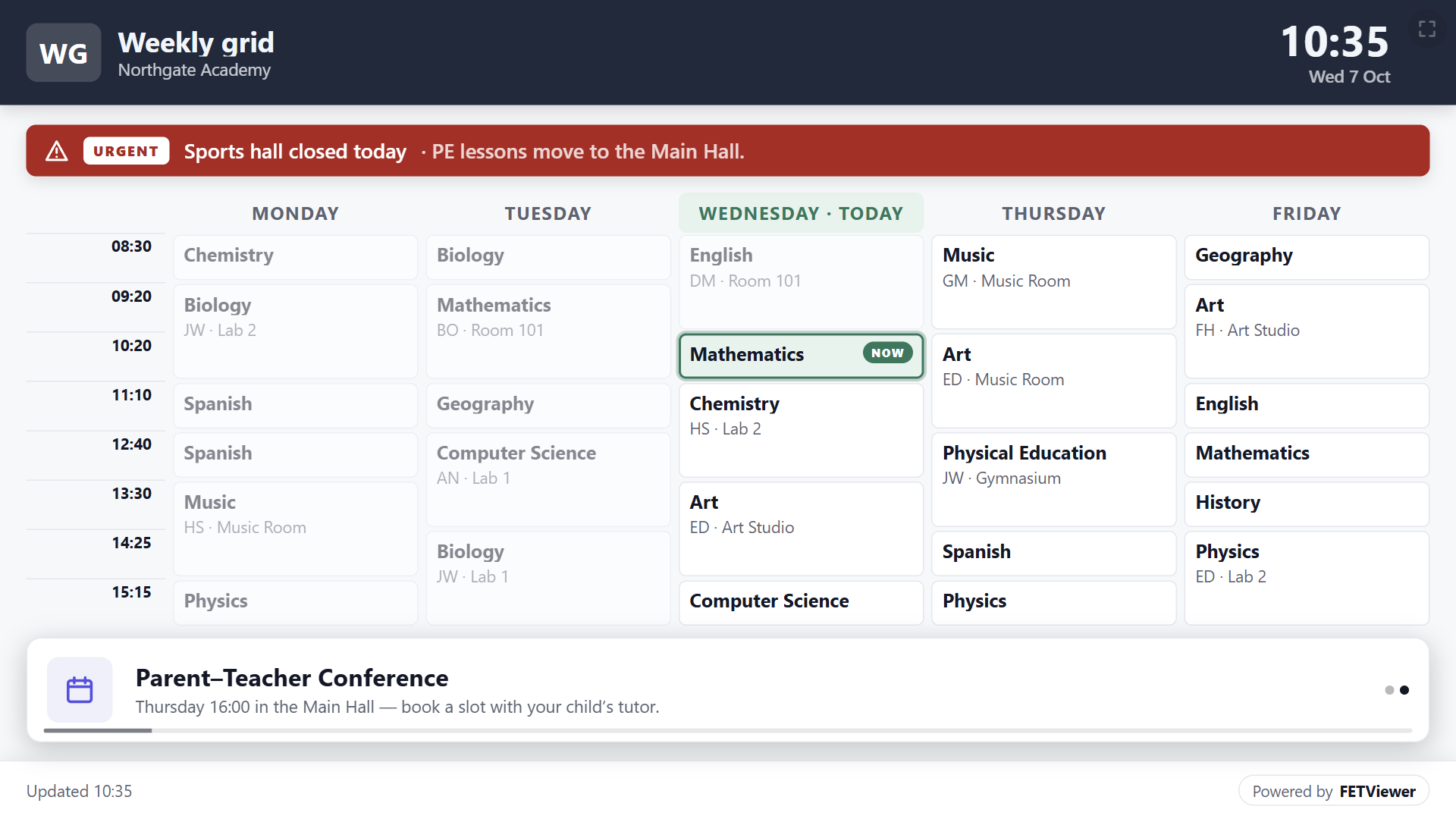
- Zoned keeps the timetable on the screen and gives the notices their own band below it. This is good for a staffroom, where people stand and read.
- Ticker shows one short line at a time.
- Carousel shows each notice on the full screen in turn, and shows the timetable again between them. This is good for a corridor, where people walk past.
An urgent notice does not wait
Each announcement has a priority: Normal, High or Urgent.
An urgent notice does not wait for its turn in the list. On every screen, in all three modes, it shows in an alert bar directly under the title of the board. On the school website, High and Urgent notices also get a badge.
The closed sports hall is an urgent notice. You write it once, and every screen shows it in the alert bar. The website shows it with the Urgent badge. You do not send it again to each place.
A safe start
The first time you open Announcements, FET Viewer adds a few starter announcements, so you can see how they look. Every starter is switched off, so none of them can reach a wall by mistake. When you have your own notices, one action removes all the starters.
What it costs
Announcements are on every plan, with no limit.
The free plan has 1 embed and 1 screen for each timetable. Basic has 3 embeds and 2 screens. Pro has 10 embeds and 10 screens. Max has no limit.