
Announcements on a display
Put notices, posters and events on a screen alongside the timetable, on a schedule, without touching the board itself.
A screen showing only a timetable is a screen people stop reading. Announcements put your own content on the same board — a notice, a poster, an event, a link — without replacing the timetable underneath.
They are managed from the timetable's data screen, under Share & display.
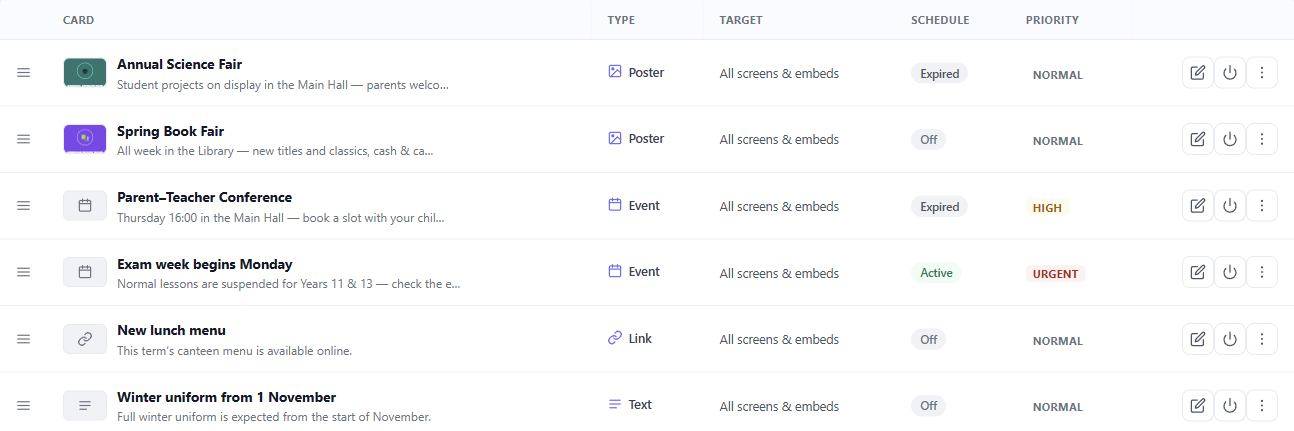
The playlist
Announcements are a list, not a single message. Each entry has a type:
- Text — a short notice in the board's own styling.
- Poster — an image you upload. The Carousel shows it on the full screen. The Zoned band shows it as a small image. The Ticker shows only its title and caption.
- Event — a notice with a calendar icon. It has no time field of its own: write the date and time in the title or the caption.
- Link — an address, turned into a QR code so a phone can pick it up.
Drag the list to change the order in which they appear. Each entry also carries a priority: Normal, High or Urgent. On a wall screen, only Urgent looks different (see below). On an embed, High and Urgent also get a badge.
Scheduling, so you can forget about them
Every announcement can carry a window — a date and time to start showing, and one to stop. Outside that window it is simply not on the board.
This is the difference between a display you maintain and one you set up. Put the sports day notice in during term planning with its own dates, and it appears and disappears on its own.
Which screens get which announcement
An announcement can go to all screens and embeds, to a building, to one screen, or to one embed. Screens carry an optional building, and that is what a building-targeted card matches against.
So the entrance hall can carry the whole school's notices while a corridor board carries only its own.
How they appear on the board
That is a per-screen choice, not a per-announcement one, because it is about the room:
- Zoned keeps the timetable in place and gives announcements a band of their own, below it and above the footer.
- Ticker shows one calm line at a time, cycling through them.
- Carousel gives each announcement the whole screen in turn, returning to the timetable between every one, so it is never gone for long.
Anything marked urgent is handled apart from that choice, and the same way in all three: it sits in an alert bar directly under the board's title. It never waits its turn behind the rest of the playlist.
A corridor people walk past wants a carousel. A staffroom board people stand and read wants zones.
Starter announcements
The first time you open Announcements for a timetable, it adds a small starter playlist, so there is something to look at and adapt. Every starter arrives switched off — none of it can reach a wall by accident — and a single action removes the lot once you have your own.