
Choosing what goes on the page
Fields, colours, breaks, days as rows, totals, mornings and afternoons, and the header — deciding what a reader who cannot click actually needs.
Everything in this section is one question asked repeatedly: what does the person holding this sheet need, and what is just noise?
A teacher's own copy and a poster in a corridor want different answers, which is why these are settings rather than a fixed layout.
Fields inside a cell
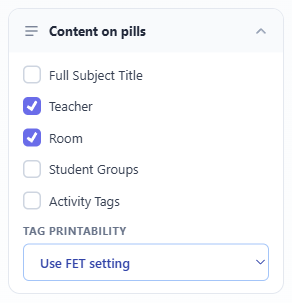
Choose which of teacher, room, student groups and activity tags appear in a cell. The subject always appears: as its short code, or as its full name when you select Full Subject Title. Fewer fields mean larger, more legible text in the same space.
A useful rule: leave out whatever the sheet's own heading already says. A teacher's personal timetable does not need the teacher's name in all thirty cells.
Colour, and what it survives
You can colour cells by subject, teacher, room or student group, or use no colour. The sheet carries a legend explaining the colours it used.
Colour is the fastest way to make a wall poster readable at a distance. It is also the first thing lost on a mono printer, on a photocopy, and by a colour-blind reader — so where the distinction genuinely matters, make sure it is also carried by the text, not only by the colour.
Breaks and bands
Break times can be drawn as bands across the sheet. A break every day becomes a full-width band; one affecting only some days is drawn only in those cells.
Worth including on anything a student reads. A timetable without breaks looks like an unbroken run of lessons, which is not the day anyone is having.
Empty slots and notes
An empty slot can stay blank or get a muted grey or hatched background. It can also show the word "Free". You can add a blank Notes column beside the grid.
The notes column is what makes a printed timetable a working document — it gives a room for cover arrangements and reminders, in the place people write them anyway.
Multi-period lessons
A lesson lasting several periods can be printed as one tall cell spanning them, or repeated in each period.
Spanning reads better and is the honest shape. Repeating is worth choosing when the sheet will be read a row at a time — a "what is happening in period 4" scan finds nothing in a spanned cell that started in period 3.
Days as rows
Open Style and select Days as rows to turn every sheet. The days become rows and the time slots become columns. A break on every day then prints as a thick dark line between two columns.
To turn only one sheet, click that sheet and use Transpose in its small toolbar. The page setting and the choice for one sheet work together. A preset keeps the page setting.
Which way reads better depends on your grid. With many time slots and few days, try both.
Student groups and total hours
Open Header & footer and select Show the student groups and the total hours under each sheet. Under a teacher's sheet, the line lists the student groups and the total hours. Under a student group's sheet, it lists the teachers.
The total counts only what the sheet shows. If you hide a day, the total does not include that day.
Mornings and afternoons
In some FET files, each real day is two half-days, for example lundi1 and lundi2. For these timetables, Layout & scope has a Mornings and afternoons choice:
- One table: the days are rows, with the morning hours, a dark line, then the afternoon hours.
- Two tables: a morning table, then an afternoon table.
- Each half-day as its own column: one column for each half-day.
If the file says that it uses mornings and afternoons, One table is the default. If the file does not say it, choose a table only if each pair of days is one real day.
You can change the words "Day", "Morning" and "Afternoon", and the words before the lists under each sheet, in Letter with signatures.
The header
The sheet's header can carry your institution name and logo, a QR code linking to the live shared timetable, a disclaimer line, and a watermark.
The QR is the useful one: it turns a printed sheet into a route back to the current version, which matters because paper goes out of date the moment something changes.
Group level
When your classes have a hierarchy — years containing groups containing subgroups — you can print at whichever level you mean, rather than getting a sheet per subgroup when you wanted one per year.