
Which file does what
Three different things can be uploaded and they replace different amounts of your timetable. Read this before your first import.
Every import replaces something. What it replaces depends on which file you bring, and the difference is large enough that it is worth two minutes before your first upload rather than after it.
The menu says what each one does
Open the timetable menu and the import rows are grouped under Get data in, each with the consequence written next to it:
- Import activities CSV… — replaces activities
- Upload .fet… — replaces everything
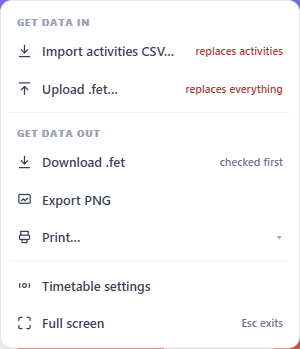
The timetable menu. Every row that changes your data says what it changes.
Those sublabels are not decoration. They are the whole distinction.
The three kinds of file
A FET project file (.fet)
The complete project as FET saves it: days, hours, teachers, subjects, rooms, buildings, student groups, activities, activity tags and the constraints. This is the one to bring if you have been working in FET.
Uploading one replaces the entire timetable — everything currently stored is cleared and rebuilt from the file.
FET's exported CSV list files
FET can export its lists as separate CSV files. Seven of them are read here. Six are lists — the teacher, subject, activity-tag, room-and-building, student and activity lists. The seventh is different: it is the teacher not available file, which FET added in version 7.10, and it carries a rule rather than a list. It arrives in Time constraints, because that is where its result appears.
Each file is imported into its own section rather than wholesale.
These are the files to use when your data lives in a spreadsheet, or when you want to bring in one list without touching the rest.
A solved-grid CSV (timetable.csv)
FET also exports the result of a solve: one row per occupied hour, with the day and hour written on each row. Download CSV Template on your dashboard gives you an example in this layout: one school week for 2 classes.
It is the quickest way to get something on screen, and it has a real limit: because it describes a finished grid rather than the activity list behind it, it carries no lesson durations and no way to say that two rows are the same split lesson. A timetable built this way is fine to read, filter, share and print — but it is not a full project.
Which should I use?
- You have a
.fetfile — upload it. Nothing else comes close for fidelity, and the round trip back to FET is intact. - Your data is in spreadsheets — use the CSV list importers, students first.
- You just want to see your week on screen quickly — the solved-grid CSV.
- You are starting from nothing — create an empty timetable and build it in the data editor.
A .fet project that holds more activities than your plan allows is refused whole rather than imported part-way, and nothing you already have is touched. The same is true of the solved-grid CSV.
One-way versus round trip
A .fet upload is a round trip: what you upload can be downloaded again and opened in FET, with the values carried through as they were written — including parts of a project this interface does not display, which travel with the file rather than being dropped.
The CSV routes are one-way in. They fill your timetable from a spreadsheet, but a spreadsheet cannot express everything a FET project holds, so what you download afterwards is built from what actually arrived.