
Days and hours
The time skeleton every lesson sits on — naming your days and periods, ordering them, and what happens when you delete one that is in use.
Before a timetable can hold anything, it needs a shape: which days it runs, and how many periods each day has. That is Days & Hours, the first section in the data screen and the one everything else is built on.
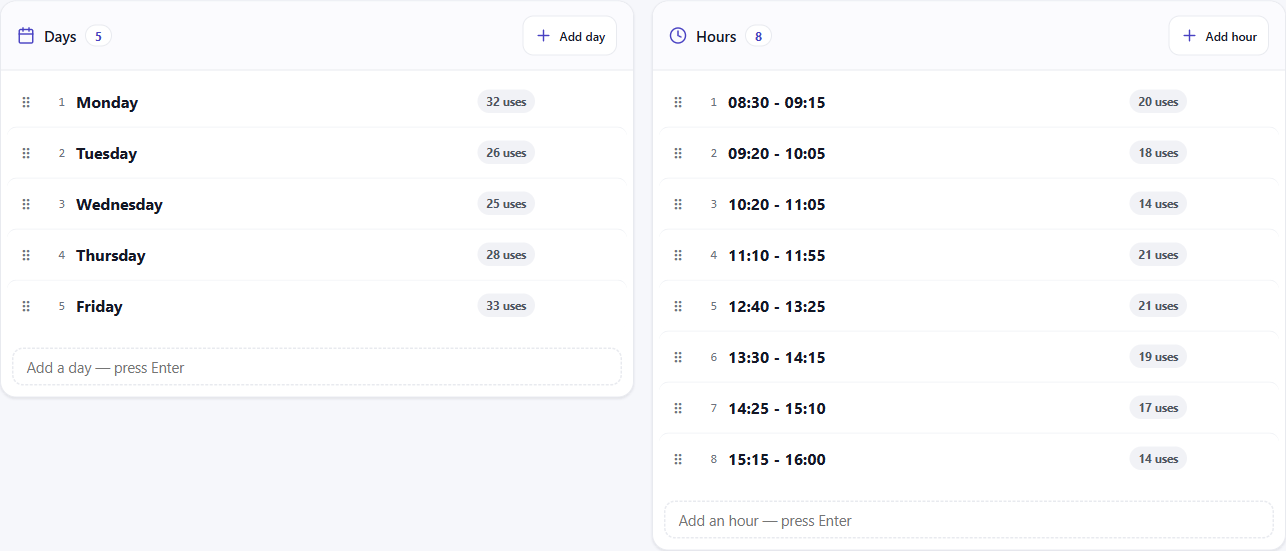
It is two ordered lists. Days across, hours down — exactly the two lists the desktop FET application keeps, which is why a file moves between the two without translation.
Order is meaning
The order of each list is not cosmetic. It is the order the grid reads in, the order the printed sheet reads in, and the order every screen and embed shows.
Drag a row by its handle to move it. Days are usually Monday first, but nothing forces that — a school running a two-week cycle can name ten days and order them however the cycle actually runs.
The same applies to hours. They are periods, not clock times: P1, P2, Break, P3 is a perfectly ordinary list. Clock times are set separately, in the calendar configuration, where they drive bell times, calendar subscriptions and printed term dates.
Adding
Type a name into the box at the foot of either list and press Enter. It is added at the end, and you can drag it wherever it belongs.
Each entry can also carry a long name — a fuller label for display, kept alongside the short one that appears in the grid. Mon and Monday are the usual pairing.
The use count
Every row shows how many activities currently use it, or says unused.
This is the single most useful thing on the page, because it tells you in advance what an edit will cost. A day showing unused can be removed with no consequences at all. A period used by two hundred activities is load-bearing.
Renaming is safe
Rename a day or an hour and everything pointing at it follows automatically — activities keep their placement, constraints keep their meaning. Nothing is orphaned and nothing needs re-pointing by hand.
If you have been calling period four P4 and want it to read Period 4, just rename it.
Deleting is not
Deleting a day or an hour that activities use will unschedule those activities. They are not deleted — they keep their subject, teachers, groups and duration — but they lose their day and time and go back to being unplaced.
The confirmation says which it is before you commit. For an unused entry it tells you plainly that it is safe to remove; for one in use it names the number of activities that will be unscheduled, and the confirm button says Delete & unschedule rather than just Delete.
Note that reordering and renaming can be undone, but deleting cannot. If you are removing something substantial, take a backup first.
The grid preview
Below the two lists is a preview of the skeleton itself — the days across the top, the hours down the side, and a caption giving the total number of slots per week.
It is worth glancing at, because that grid is the surface everything else lands on. Activity placement, teacher and room availability, and the preferred-starting-time pickers inside constraints all address this same grid. If the skeleton is wrong, everything built on it will be wrong in the same way.
Get this section right first. It is much cheaper than fixing it later.