
Constraints
The rules that decide where lessons may go — how to add one, what the weight actually means, and why the order of the list matters.
Activities say what must be taught. Constraints say where it may go: this teacher is unavailable on Friday, that lab can only hold one class at a time, this subject should not be the last lesson of the day.
They are split into two sections, because FET treats them as two separate problems. Time constraints are about when. Space constraints are about where.
The two rules you did not write
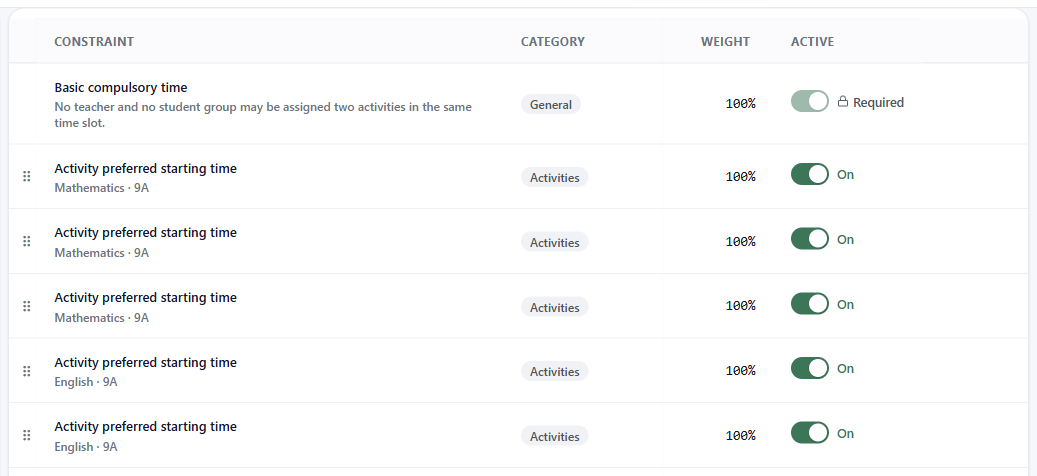
Every timetable carries two constraints it did not create: a basic compulsory rule for time and one for space. They are the floor — no teacher or student group in two places at once, no room double-booked.
FET requires them, so they are always at full weight and cannot be switched off. They appear in the list marked Required, with their toggle locked.
Weight is the whole idea
Every other constraint carries a weight between 0 and 100. You can choose that number on some types and not on others — the rule is further down this page.
100% is hard. It must hold. If it cannot, there is no timetable.
Below 100% is a preference, and its weight is how strongly you want it. A rule at 95% will be honoured unless honouring it makes something else impossible; a rule at 40% is a nudge. This is what lets a schedule be good rather than merely legal — you can express I would rather not, but I will if I have to, which is how real schools work.
The list labels each row Hard or Soft on exactly this basis, and you can filter the list by weight range to find everything you have made hard, or everything you have left as a wish.
Most constraint types cannot be weighted at all. FET keeps a list of the types you may weight freely, and it refuses every type that is not on it.
⛔ This is not a formality. FET refuses the value twice: its own dialog will not save it, and its generator stops before it starts. A file that carries one of these types below 100% does not give you a worse timetable. It gives you none.
The editor disables the weight field for those types and tells you why. You therefore cannot type a number FET would refuse.
Two more cases force 100%:
- the compulsory rules above
- a preferred-room rule for a virtual room that has been pinned to specific real rooms — FET's own requirement. This one depends on what the rule contains, not on its type, so it changes as you edit the room list.
There is one honest wrinkle. A file imported from FET is never adjusted, even if it carries one of those rules below full weight. Silently rewriting somebody's file would break the promise that what goes in comes out. So the list shows the weight that is stored, with the reason shown as a tooltip, rather than showing you a number that is not in the file.
Adding one
Add opens a picker of every constraint type FET supports, grouped by category and searchable. There are a great many, and the search box is the way through — type room, or gap, or consecutive, and see what exists.
Choosing a type opens its editor, which is built from that type's own definition, so the fields you get are the fields that type actually has. Beside it is a help panel describing what the constraint does. It is worth reading: constraint names are terse, and several types are near-neighbours that differ in one important respect.
Where a constraint needs time slots, you do not fill in a list — you get a days × hours grid and click the cells. A handful of types need sets of slots rather than one selection; those give you a single grid where each cell is painted into a numbered set, so you can see the sets against each other instead of maintaining several lists side by side.
Every activity, or only some?
This trips people up, and it is worth stating plainly: on many constraint types, the fields that name a teacher, subject or group do not decide who is affected — they decide which activities the rule looks at.
They are a filter over activities, not a target. Reading a form field as this rule is about Mr Smith when it means consider the lessons involving Mr Smith leads to rules that quietly do nothing. The help panel for each type says which it is.
Order
The list has an order, and it is not decorative: it is the order constraints are written into the exported file.
Drag rows by their grip to arrange them, or use Sort A→Z to alphabetise the whole section and save that. Dragging is offered only when you are looking at the full list in its natural order — while a search, sort or filter is narrowing it, the position you drag to would be meaningless. The compulsory rules are managed by FET and never move.
Reordering can be undone.
Working through a long list
The section has a category rail, a search box, an active/inactive filter and the weight-range slider. Between them you can usually get from something is wrong with Friday to the handful of rules that mention it.
Selecting rows lets you activate, deactivate, set a weight or delete in one action. Deactivating is the useful one — it keeps the rule and its settings while taking it out of play, which is how you test whether a rule is the thing making your timetable impossible.
Each constraint in a bulk action is authorised on its own. Someone working through a scoped share link changes what they are allowed to change, and the rest is left alone rather than the whole action failing. A bulk weight change also names anything it refused to move.
Above the list, editors get a one-line pre-flight summary. If it reports a blocking conflict, that is a proof rather than a warning, and it is worth following before you go any further.