
Running a screen on a wall
Drive a hallway or staffroom display from your timetable — what each board shows, how it knows the time, and what it does when nobody is watching.
A screen is a board built for a television or monitor on a wall: large type, no chrome, and no one to operate it. Connect the TV once with your phone, or open the screen's address on it. Then leave it.

Screens are managed from the timetable's data screen, under Share & display.
Choosing a board
New screen offers starter boards, each answering a different question:
- Weekly grid — the whole week, for a staffroom or an entrance hall.
- Now / Next — what is running and what follows, for a corridor.
- Class day — one class's day, for outside a classroom.
- Single room — what is happening in this room, for the door of it.
Preview them before choosing. As with embeds, a new screen is created switched off, so nothing appears on a wall until you turn it on.
Putting a screen on a TV
There are two ways. The first way is easier on a TV, because you type nothing on the TV remote.
Connect a TV with your phone
- On the TV or smartboard, open the browser and go to fetviewer.com/screen.
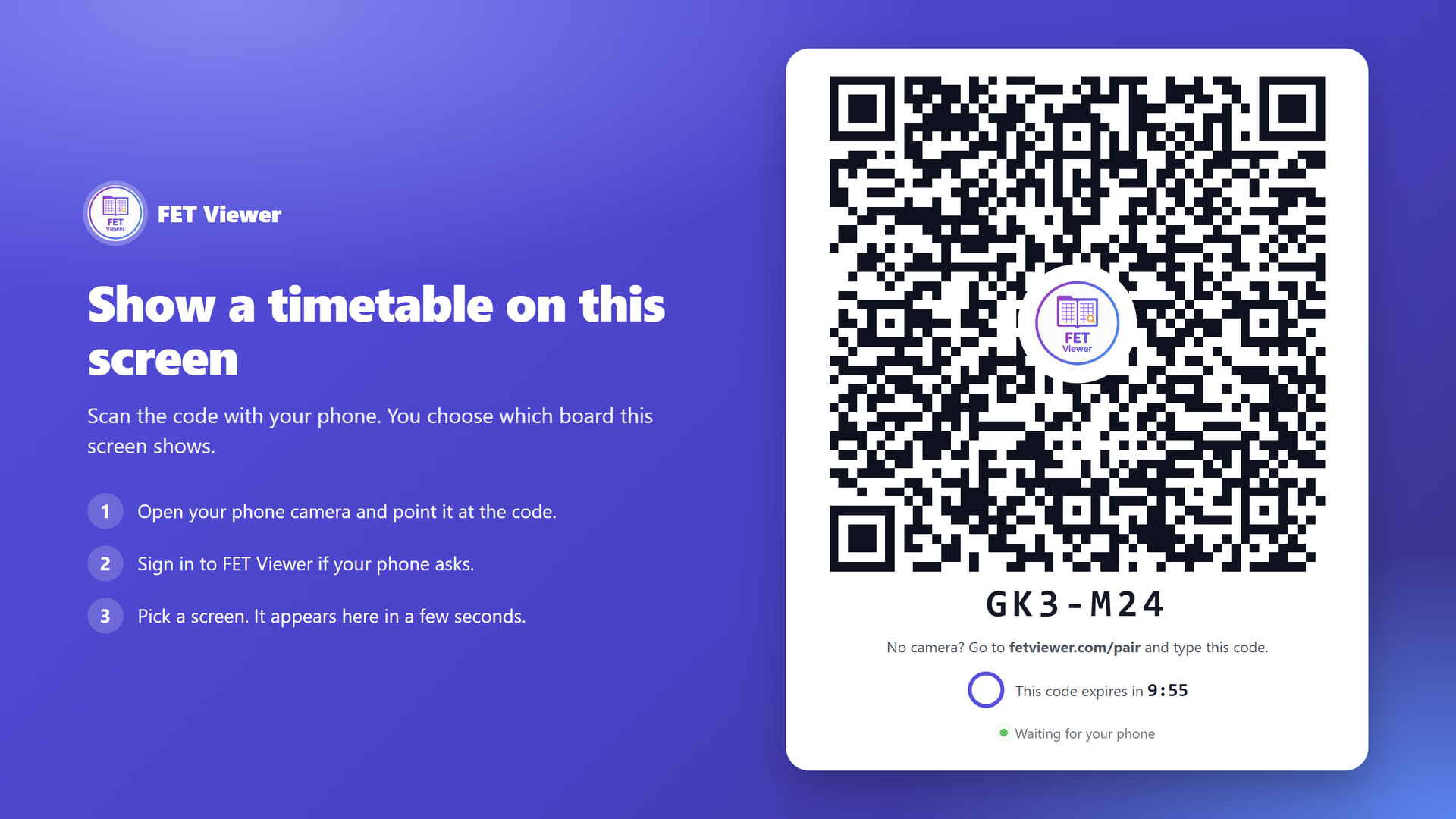
- The TV shows a QR code. Scan it with your phone camera.
- If the phone asks, sign in. Pick a screen and select Connect.
- The TV shows the board in a few seconds.
The TV keeps the board after a restart. You do not connect it again.
If the phone has no camera, the TV also shows a short code. On the phone, go to fetviewer.com/pair and type the code.
The code on the TV is valid for 10 minutes. The TV shows the time that remains. When the time ends, the TV shows a new code automatically.
Only the owner of a timetable, or a person who can manage its access, can connect a TV to its screens.
Connected TVs
The Screens list shows your TVs under Connected TVs, with the screen each TV shows and when it last reported.
- Switch or rename changes the name, or the screen that the TV shows. The TV changes within a minute. Nobody needs to touch it.
- Disconnect removes the TV. Within a minute it goes back to the QR code.
Each connect, switch, rename and disconnect shows in the timetable's activity log, under Signage.
Open the screen's address
Each screen also has its own long address. Open it in the TV browser and put it in full screen. This is useful when the TV is connected to a computer.
Bell times are what make it a clock
A board that says now and next needs to know when your periods start and end. That comes from the bell times you set for the timetable, alongside its time zone.
Without them, only the Weekly grid works. The other boards show "No lessons scheduled". Set the bell times before you hang a screen in a corridor.
On a mornings-afternoons timetable, also fill in the Afternoon bell list. Afternoon lessons use only that list. If it is empty, the board says "After hours" during the afternoon.
The time comes from the server, not the television. A wall-mounted screen with a wrong clock is common and normally invisible. The board takes its time from here and applies it, so a mis-set TV shows the right period anyway.
Outside school hours the board says so rather than showing a stale last lesson.
When the timetable is large
Some timetables do not fit on one screen. A file can have 34 columns, or 22 slots in a day. The Week grid board has one setting for this case, When the timetable does not fit:
- Auto (the default). In Mornings-Afternoons mode, each real day is one column, with the morning above the afternoon. In Terms mode, only the current term shows. Empty slots are removed. If there are still too many slots, the board shows the slots around the current time. If there are too many columns, the board turns pages. On a TV that stands upright, it shows today's list.
- Turn pages always turns pages and never hides slots.
- Today list shows only today, with the current and the next activity at the top.
If the screen shows full-screen announcements, a page turns only between two announcements. An announcement never interrupts a page.
What it does unattended
Screens are built to run for months without anyone touching them:
- They refresh themselves, so an edited timetable reaches the wall on its own.
- They recover from a failed load rather than sitting on a blank screen.
- They fill the display exactly, without scrollbars or a stranded margin.
- A large timetable still fits. The Week grid shows real days. It removes empty slots, shows the slots around the current time, and turns pages when the columns do not fit. On a TV that stands upright, it shows today's list.
- Today's cover arrangements are merged in, so the board shows who is actually teaching rather than who was scheduled.
If the timetable has more activities than your plan allows, each screen shows only the allowed number. Placed activities come first. The board itself shows no notice about this.
Each board also reports quietly that it is alive, so the screen list shows each one as Live, Idle or Offline. A screen is Offline when it has not reported for 1 hour. A television that is switched off at the wall is visible from your desk.
Look and readability
Each board has a light, dark and high-contrast setting, and a calmer or busier density. These are worth choosing against the room rather than the design: a sunlit entrance hall and a dim corridor do not want the same board.
Your institution logo appears on every board, on every plan. Paid plans add brand and accent colours.
Where to go next
- Announcements on a display — put notices on the same board.
- Embedding a timetable in your website
- Keeping a display safe