
Embedding a timetable in your website
Put a live timetable on your own web page — how to make one, what visitors can see, and why nothing goes live until you say so.
An embed puts a live view of your timetable inside a page you already have — a school website, an intranet, a parents' page. It updates itself, so the page never shows last term's grid.
Embeds are managed from the timetable's data screen, under Share & display.
Making one
New embed opens a set of starter styles you can preview before choosing. They differ in shape rather than in content: a full week grid, a compact bar, a side panel, a single spotlight lesson, a slide-out drawer, a scrolling ticker.
Pick one with Use this style, or take Start blank and configure it yourself. Either way you land in the configurator with the embed already created.
A new embed is created switched off. Nothing is reachable until you enable it, so there is no window where a half-configured embed is live on someone's site.
Choosing what it shows
The important setting is scope — how much of the timetable this embed covers. You can publish the whole thing, or narrow it to one class, one teacher, one room, or one building.
Scope is not a display filter. The narrowed data is what actually leaves the server: an embed scoped to one class contains only that class's lessons, so a name outside that scope is not in the page for anyone to find.
Your plan also sets how many lessons a display can show. If the timetable has more lessons than your plan allows, the embed shows only that number. The Embeds list tells you how many lessons are not shown. The embed itself does not say it, so visitors cannot see which plan your school has.
Teacher names are a separate choice, because a public page is not the same audience as a staffroom. You can show full names, reduce them to initials, or leave them out entirely.
Putting it on your page
The configurator gives you a snippet to paste. It carries a long random address that is the embed's only credential — anyone holding it can view the embed, and nothing else.
Today's cover arrangements are merged into the grid, so a page showing the week also shows who is actually teaching.
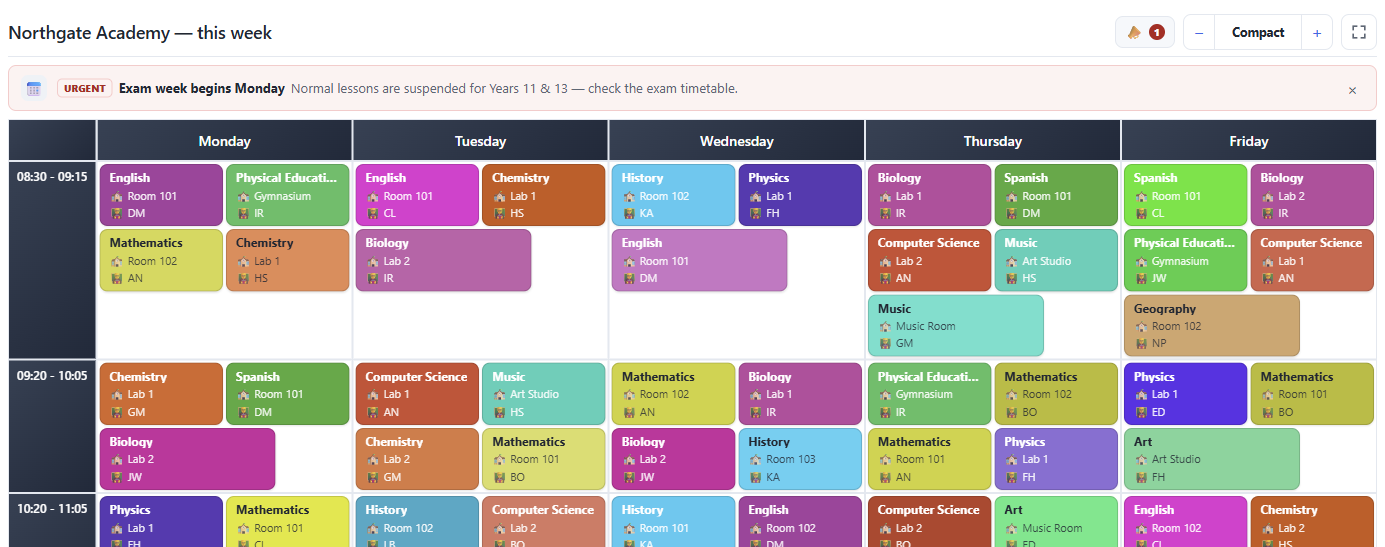
A week-grid embed as a visitor sees it.
Preview never touches the live page
The configurator's Preview renders the settings as they currently stand in the form, including changes you have not saved. It is a temporary rendering that expires on its own.
This matters more than it sounds: it means you can try a different theme or a narrower scope on an embed that is already live on your school's website, look at the result, and walk away without anything changing. Save is the only thing that alters what visitors see.
What visitors get, and do not get
- No cookies. Displays set none and are excluded from analytics.
- No sign-in. There is nothing to log into and no account involved.
- No route back. An embed shows what it was scoped to and offers no way to reach the rest of your timetable.
If an address is revoked or wrong, the embed shows a plain "unavailable" card rather than an error page. A broken embed should look tidy inside someone else's website, not alarming.