
Planner mode
Ask the app where one lesson could go. It answers in a sentence, ranks the slots, and when nothing fits it names what is in the way.
Most timetabling trouble is one lesson that will not sit anywhere sensible. Planner mode takes that lesson and works the problem for you.
Start it by double-clicking a lesson, choosing Plan Activity from its right-click menu, or picking Task ▸ Planner and then clicking the lesson you mean.
The verdict comes first
The panel does not open with a list. It opens with an answer, in one sentence.
When there is room, it names how many clean slots exist and which is best, with the reason — and offers to place it there immediately. One click and the lesson is down.
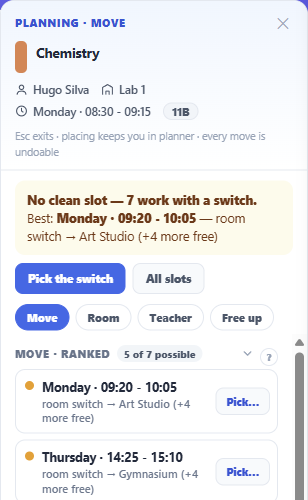
When nothing is clean but something is close, it says so, and points at the best slot that would work if you switched a resource — a different room, a different teacher. The action takes you straight to choosing that switch.
When nothing fits at all, it names the bottleneck. This is the part worth knowing about, because "no slots available" is a useless answer to the person who has to fix it. Instead you get:
- *No slot works — the room is the bottleneck. It is in the way at 14 of 20 blocked slots.*
- *No slot works — the teacher is the bottleneck. They are busy or unavailable at 17 of 20 blocked slots.*
- *No slot works — the student groups are the bottleneck. Their week is already full at 19 of 20 blocked slots.*
Naming the constraint that is actually binding turns a dead end into a decision: find a different room, free the teacher, or accept the groups are full.
There is a fourth case. If the lesson is a multi-period block and no run of consecutive periods on the visible grid could hold it, the panel says exactly that rather than blaming a filter or a busy week — and points out that switching its room or teacher in place is still available.
The grid answers too
While the planner is open, the week is washed into tiers so you can see the answer spatially as well as read it.
Slots that fit as-is are marked one way; slots that would fit after an available switch another, with a dot showing how many options exist there; everything else stays plain.
Hovering a marked slot puts a single chip in the cell — Place, or Pick a switch… — so the action is always where your eye already is.
X-ray or clean
The panel offers two ways of looking at the rest of the timetable while you plan.
X-ray keeps everything visible but fades it, highlighting the lessons that share this one's teacher, room or groups — the lessons that are actually in competition with it.
Clean grid hides the unrelated lessons entirely, leaving only what matters to this decision.
X-ray is better for understanding why a slot is blocked; clean is better once you know and just want to see the space.
Four ways out
Under the verdict sit the four kinds of answer, and you can switch between them whenever you disagree with the one being suggested.
Move ranks the slots the lesson could go to. Room and Teacher list the rooms and teachers that are free instead — ranked and searchable — so you can solve the problem in place rather than by moving it. Free up goes the other way and looks at what would have to shift to make a wanted slot available.
Room and Teacher are what answer a the room is the bottleneck verdict.
Every ranked list says how many of the possibilities it is showing, so a short list is visibly a short list and not a truncated one.
Placing a lesson keeps you in the planner rather than throwing you out, and every move you make here can be undone.
Filters stay on
The planner deliberately keeps your filters. A filter is a view, not a mode, and losing your working context every time you plan a lesson would be worse than useless.
The one risk that creates is planning a lesson you cannot see, so if the lesson you are planning has been filtered out of the grid, the panel tells you.
Leave with Exit planner, or by starting a different task.