
Trying the demo
A finished sample timetable you can experiment in without an account — and without keeping anything you change.
The demo is a complete sample timetable, already filled in, that anyone can open. There is nothing to sign up for and nothing to install — it is the quickest way to see what the interface does before committing a real timetable to it.
Opening it
Go to the demo directly, or use Try Demo on your dashboard. It also appears as Explore the demo among the starting points on a brand-new account.
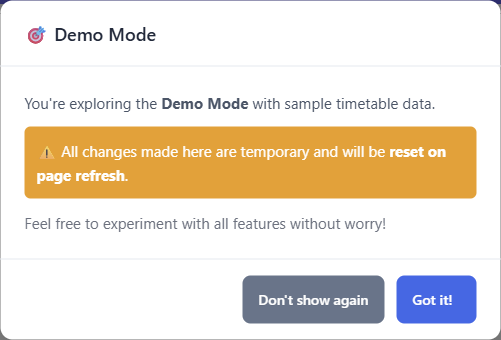
The first time you open it, a note explains that you are in demo mode and that changes are temporary. You can dismiss it for good with Don't show again.
Nothing you do is kept
This is the point worth understanding before you start clicking.
Every change you make in the demo is discarded when the page reloads.
Rearrange lessons, change what the cells display, filter down to one teacher, zoom in — none of it is saved anywhere, and none of it affects what the next visitor sees. Refresh the page and the sample timetable is back exactly as it started.
That is deliberate: it means you can try things that would be nerve-wracking on a real timetable, including the ones that look destructive.
What the demo includes
The demo covers reading and rearranging the week, and getting the result out:
- Filtering the grid down to one teacher, class, room or subject.
- The display options that control what each lesson cell shows.
- Dragging lessons and seeing conflicts reported.
- Export PNG, Export CSV and the print views for rooms, teachers, student groups and activity tags.
- Full screen, for showing the timetable to a room.
The data editor is not part of the demo — the settings button is switched off there. Adding teachers, subjects, rooms or constraints is something you do on your own timetable, where it can be saved.
There is also no import in the demo, and no download back to FET. The sample is the sample; bring your own file to a timetable of your own.
Moving on to your own timetable
When you are ready, create an account and use New Timetable on the dashboard. If you already have a FET project, upload the .fet file there and the whole thing comes across — the demo is not a starting point you have to convert, just a place to look around.