
Working with a lesson
Hover, click, double-click and right-click each do something different — what they do, and what the lesson card tells you.
A lesson in the grid responds to four different gestures, and each is a deliberate step up in commitment: look, open, act, plan.
Hover — look
Hovering does not open anything. It traces.
Hover a lesson that runs over several periods and the rest of the grid dims while a connector is drawn along the block, so you can see at a glance that this is one lesson occupying three slots rather than three lessons that happen to share a subject. A single-period lesson simply lights up.
This is the gesture you use constantly while reading a timetable, which is exactly why it does not open a card. Cards that appear under a moving mouse are noise.
Click — open the card
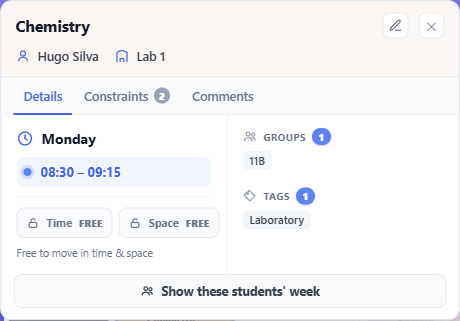
Clicking pins the lesson's card open. It stays until you close it, so you can read it, look away, and come back.
The card carries the subject, the teachers and room (or a plain No teacher / No room where they are missing), the student groups, the duration, and any comments. There is a tab for the constraints that apply to this lesson, which is usually the fastest answer to why is this stuck here.
For a lesson spanning several periods, the card lists each period and marks which one you clicked.
It also states the lock position in words, and this is the part worth reading:
- Time & room are both pinned
- Time pinned · room free to move
- Room pinned · time free to move
- Free to move in time & space
Because locking has two independent axes, "locked" on its own is not an answer. The card gives you the whole answer in one line.
Show these students' week switches the grid to the cumulative week of every student set that takes this lesson's subject. It replaces only the student group filter. That is how you find out when the students are actually free — as opposed to when the room is, which is what the free-rooms filter tells you.
Clicking the same lesson a second time focuses it: everything else is hidden, leaving just this one on the grid.
Double-click — plan it
A real double-click opens the planner for that lesson: a panel that works out where it could go and tells you the answer directly. That has its own page.
Double-click plans only in the ordinary day × time view, where "somewhere else" means a time slot.
If you would rather not remember the gesture, Task ▸ Planner arms a one-shot pick — the next lesson you click gets planned instead of opening its card.
Right-click — act
The context menu holds the things that change the lesson:
- Edit — the full activity dialog
- Split… and Combine… — turn one lesson into linked parts, or several into one split
- Ungroup split — the single structural action offered on a lesson that is already part of a split
- Unassign — take it off the grid without deleting it
- Lock time and Lock space — two rows, one per axis, each naming what clicking it will do, so a row reads Unlock time once time is pinned. There is no combined lock: a lesson pinned in time but free in space is a real and useful state, and one row could never say which half it meant. Each takes effect on the click, with nothing to confirm
- Plan Activity
- Show same subject and Show same teacher — quick spotlights. ⚠ They replace your current filters with that one subject or teacher.
A lesson locked in time cannot be dragged, in any view. A lesson locked only in space (its room) can still be dragged to another time, except in the Rooms view, where a drag would change its room. If a drag will not start, check the lock state on its card. That is why the lock rows sit in the same menu as the actions they prevent.