
Merging two timetables
Bring another timetable's content into this one — either just the standing rules about staff and rooms, or everything. What can travel, what cannot, and why the restore point is the undo.
Uploading a .fet replaces a timetable. Merging adds to one. It is the tool for "start next term from last term's", and for "use the same staff availability rules we set up in the other timetable".
Where to start it
Two places, and they do the same thing:
- Merge into this in a timetable card's ⋮ menu on your dashboard.
- Merge into this in the timetables list inside the data screen.
Both open the same wizard. In both, the timetable you started from is the destination — the one that will gain content. Nothing is written to it until you reach the confirmation step.
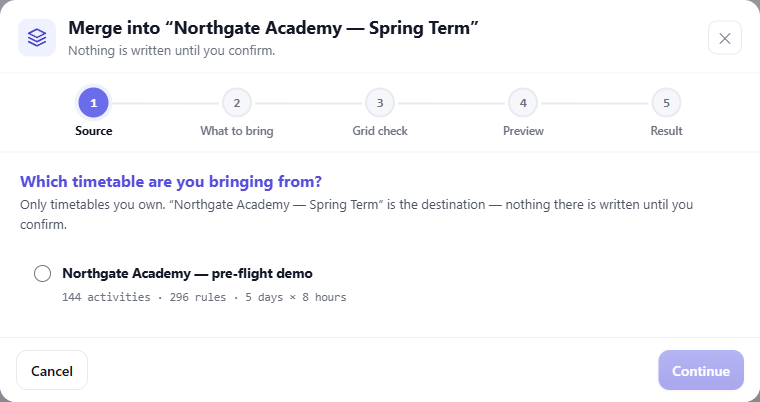
Step 1. The timetable you opened the wizard on is the destination, and it says so.
Only timetables you own can be merged, on both sides. A share link that lets someone view a timetable does not let them merge it, or merge from it.
Two jobs, and most people want the first
Standing rules only
Rules about people and places — staff availability, workload limits, room availability, tag policy. These describe your school, not this term's lessons, so they are worth setting up once and reusing.
Nothing is removed and no lessons are created. It is the safe one.
Everything
The lessons as well, with the rules that pin them to a time or a room. This half needs a Basic plan or above; see Plan limits below.
⚠ Be clear about what this gives you: two solved terms cannot occupy one week. Afterwards the destination is over-booked, and the pre-flight analyzer will list every clash. That is expected, not a fault — but it means a full merge is the start of some work, not the end of it.
Placements only — why it is greyed out
A placement names an activity by its id, so it cannot arrive before the activity it points at. FET stores a placement as a constraint, not as a field on the lesson, which is the same reason placements travel with Everything and cannot be separated from it.
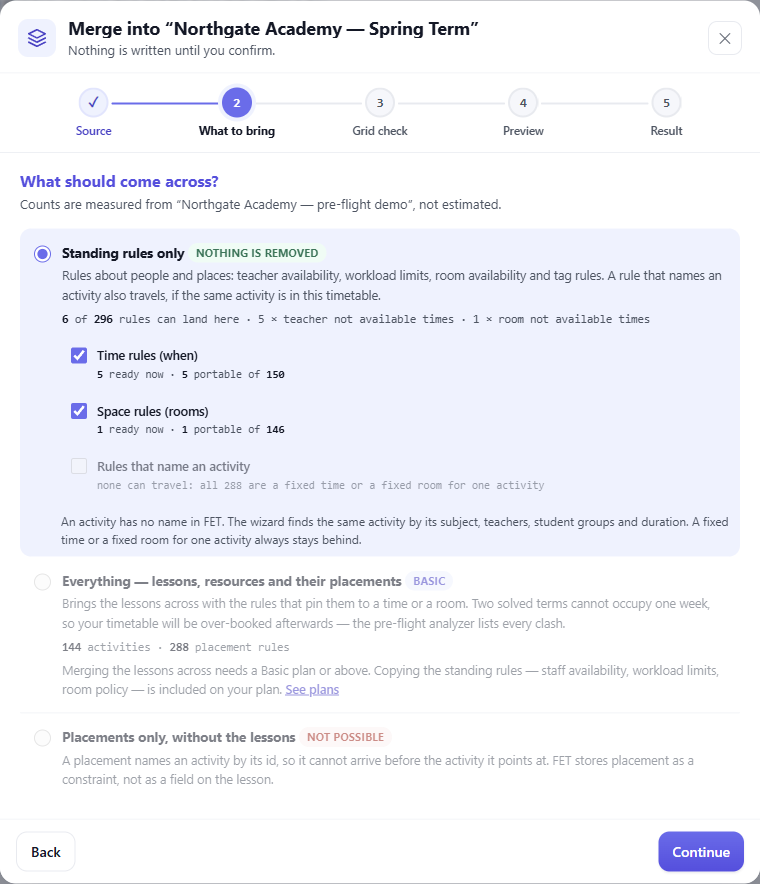
Step 2. Every count is measured from the chosen source, so you can see how little of it travels.
Why so few rules can travel
The counts on that screen are usually much smaller than the source's total, and that surprises people. The reason is worth understanding, because it is not a limitation of this feature — it is how FET models constraints.
Roughly four out of five constraints in a real timetable name specific activities. "This activity not on Friday", "these two activities not at the same time", "this activity starts at 9". An activity has no name in FET, so the wizard looks for the same activity in this timetable: the same subject, teachers, student groups and duration. For a split activity, it also compares which part it is. If it finds exactly one, the rule travels and names that activity. If it finds none, or more than one, the rule stays behind.
A fixed time or a fixed room for one activity always stays behind. A solved timetable has one of each for every activity, and the new term needs its own. A copied rule can also disagree with a rule here, so run the pre-flight check after the merge.
The other rules name only people, rooms, subjects or groups. They travel when those names exist in both timetables.
A rule also has to land: every name it mentions must already exist in the destination. A rule about a teacher you do not have cannot be applied, so it is counted as portable but not ready. The wizard shows both numbers.
The grid check
The two timetables may not run the same week. Step 3 compares the days and hours, and gives one of three answers per axis:
- They already match. Nothing to decide.
- Some are missing. The wizard offers to create them, so the incoming content has somewhere to sit.
- They do not overlap at all. ⚠ Here you are asked to map each incoming name onto one of yours, and you should. Creating them instead would append a second week to your first — a source with 12 hours merged into your 8 would give you a 20-hour day, not a shared week. Mapping is the correct answer whenever the two grids are simply named differently.
Who is the same person
If both timetables have a "J. Smith", is that one teacher or two? Step 4 asks, once per matching name.
The default is same person, because the usual case by far is two terms of one school. Merging then reuses your existing teacher rather than creating a duplicate.
The exception is the sample data. If the incoming names look like the sample roster that ships with the CSV template, the wizard says so and does not assume they are yours — that is a case where identical names really are coincidence.
The restore point is the undo
There is no "undo merge" button. Instead, a complete .fet of the destination downloads to your computer before anything is written.
That file is the undo. If the result is not what you wanted, upload it back and you are exactly where you started.
⚠ Because it is a file, it has to actually reach your computer. If your browser asks where to save it, answer. Closing the tab at that moment leaves you with no restore point.
Running it twice is safe
For standing rules, re-running the same merge adds nothing the second time. The wizard tells you how many rules are already there before you confirm.
For Everything, a second run genuinely does add the lessons again — they are new lessons, and there is no way to tell a deliberate duplicate from an accidental one. Check the preview count before confirming.
Plan limits
Copying the standing rules is included on every plan, free ones too. It is the half most people want — set your staff availability up once and reuse it — and it creates no lessons.
Merging the lessons across needs a Basic plan or above. The wizard says so on the option itself, at the point you choose it, rather than letting you fill in four more steps and refusing at the end.
A merge also adds activities, so it is bounded by the same per-timetable activity limit as creating and importing. The wizard checks before it starts, not after, and tells you the numbers if the result would not fit.
Two details that catch people out:
- The limit belongs to whoever owns the destination, not to whoever is running the merge.
- Split activities count once, as one teaching unit — the same rule as everywhere else. See Plans and limits.
Where to go next
- Which file does what — merging compared with the file-based routes.
- Uploading a .fet file — the replacing import, and how to restore from your restore point.
- Backups — the other way to get back.
- Constraints — what the rules are and how they read.