
Teachers, subjects, rooms and tags
The resource lists a timetable is built from — what each one holds, how to edit many rows at once, and what deleting one actually does.
Five sections in the data screen work the same way: Teachers, Subjects, Activity tags, Rooms and Buildings. They are the inventory a lesson is assembled from. Learn one table and you have learned all five.
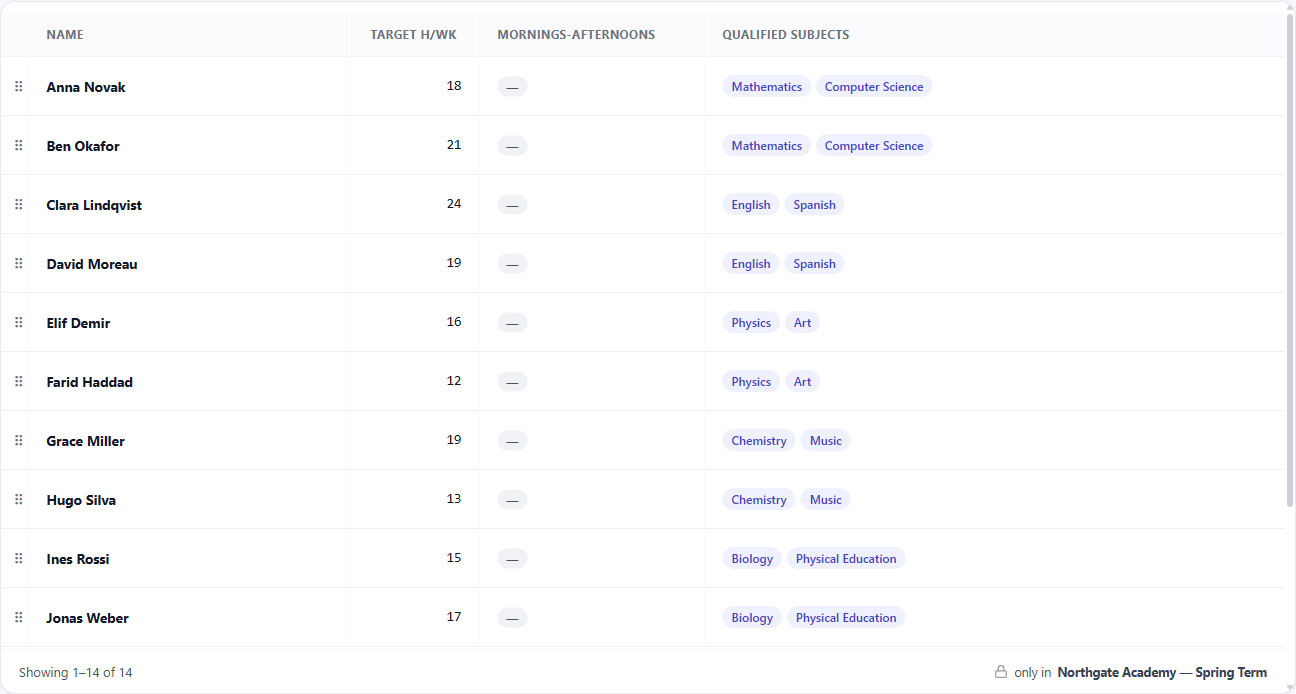
What each one holds
Teachers carry a name, a code, an optional long name, target hours per week, and the subjects they are qualified to teach. The detail pane also shows their active hours — the total length of the lessons currently assigned to them, counting only active ones — so the load a teacher actually has sits next to the target you set for them. In Mornings-Afternoons mode a teacher also carries a mornings-afternoons behaviour; it does not appear in other modes, because it means nothing there.
Subjects carry a name, a code and a colour. The colour tints that subject everywhere it appears — the grid, the print sheets, the embeds — which is what makes a full week readable at a glance.
Activity tags label lessons for filtering and rules. Each has a printable flag deciding whether it shows on printed output; some tags are for your own organising and are not meant for the sheet a parent sees.
Rooms carry a capacity, a building, and a virtual room flag. A virtual room is not a place — it is a requirement standing in for one, defined by the sets of real rooms that can satisfy it. Capacity is a maximum number of students, and the very large default value means no limit rather than a real ceiling.
Buildings group rooms, so a rule can talk about the distance between them instead of naming rooms one at a time.
Every one of them also takes a free-text comment, which travels with the file and is a good place to record why something is the way it is.
Each name must be unique in its list. FET finds a teacher, subject, tag, room or building by its name, so two with the same name make the file unclear. If the name already exists, the product does not add the new row and tells you why.
Working through a long list
The table shows a page at a time, with a pager, so a school with hundreds of teachers loads as quickly as one with twelve.
Click a column heading to sort by it; click again to reverse. Sorting returns you to the first page, since the row you want is now somewhere else entirely.
The Columns control shows and hides the optional columns. A table you only use for checking room capacity does not need to carry six other columns, and the choice is remembered per section, so each list keeps the shape you gave it.
Selecting a row opens a detail pane beside the table, split into the facts themselves and the constraints that refer to this row. That second tab is usually the answer to why is this teacher behaving oddly — the rules touching them are listed in one place rather than hidden in the constraints section.
Changing many rows at once
Tick the checkbox in the header and you select the page you are looking at. When more rows match than fit on the page, a banner offers to extend the selection to all of them. The distinction matters, and the banner exists so that "everything" is something you choose rather than something you assume.
Selection survives paging, so you can gather rows from several pages before acting.
With rows selected, the bulk bar can set the fields that are most tedious one at a time — a building or a capacity across a set of rooms, target hours or qualified subjects across a set of teachers, a colour across a set of subjects, or the printable and virtual switches across tags and rooms.
Those switches can also be toggled directly in the table, without opening anything, and that edit can be undone.
Subjects have one extra tool: Reset colours clears every subject's colour at once, which is the fastest way to start a colour scheme over.
Order
Rows can be dragged into an order, or sorted A→Z in one action. That order is kept, and it is the order the exported file lists them in — so a file you send to a colleague reads the way you arranged it rather than the way it happened to be imported.
Deleting, and what survives
Deleting is the one action worth reading the confirmation for, because the confirmation is specific rather than generic: it counts the activities and constraints that actually refer to what you are about to remove.
What happens next is the part to understand. Those activities and constraints are not deleted along with it. They stay exactly where they are, still naming something that no longer exists.
The download checks first, and it tells you. Before it gives you the file, the product reads what it just built and looks for every teacher, subject, student group, activity tag and building that a row names but the timetable no longer has. FET cannot open a file like that, so the download stops and the message names what is missing.
So a timetable cannot quietly export short. If you delete a teacher, reassign their lessons — the download waits until you do.
Deleting a building is not gentler than the rest. The rooms in it survive and lose their building, and the download stops for those rooms in the same way.
Deleting cannot be undone. The pre-flight check also reports rules that name things which no longer exist, so it is worth running after any significant clear-out — it finds them before you reach the download.