
Print every teacher's timetable at once, and stamp it DRAFT
One page for each teacher, in one print. A DRAFT watermark until the timetable is final, and changes for one sheet only.
The timetable is finished in FET. Now the staff room wants it on paper.
So you print one teacher, then the next one, then the next one. Somewhere in the pile, a page breaks onto a second sheet. And a week later, an old version is still on the wall, because nobody could see that it was old.
The print page in FET Viewer is made for this job.
One print for the whole staff
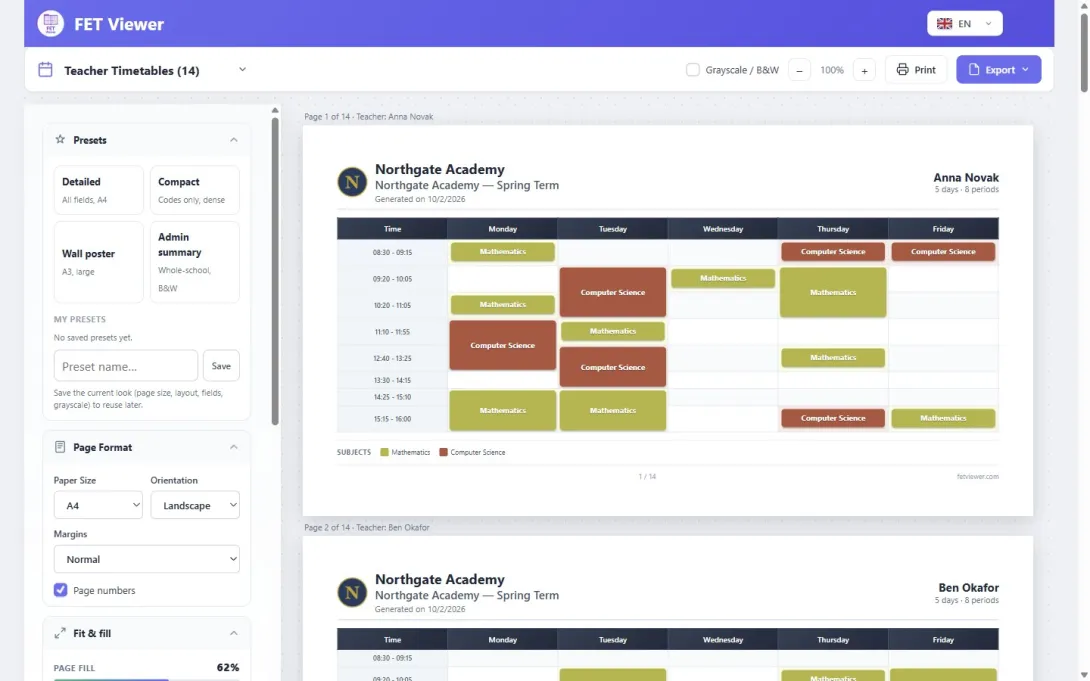
Open your timetable on fetviewer.com and choose Print → Teachers. Every teacher gets their own page, and you see all of them before you print. The settings are on the left. The preview on the right shows the real pages.
You choose the days and the periods, what each activity shows, and how the cells are coloured. Switch on Fit to one page, and each sheet becomes just small enough for one page. A meter warns you before a sheet goes onto a second page.
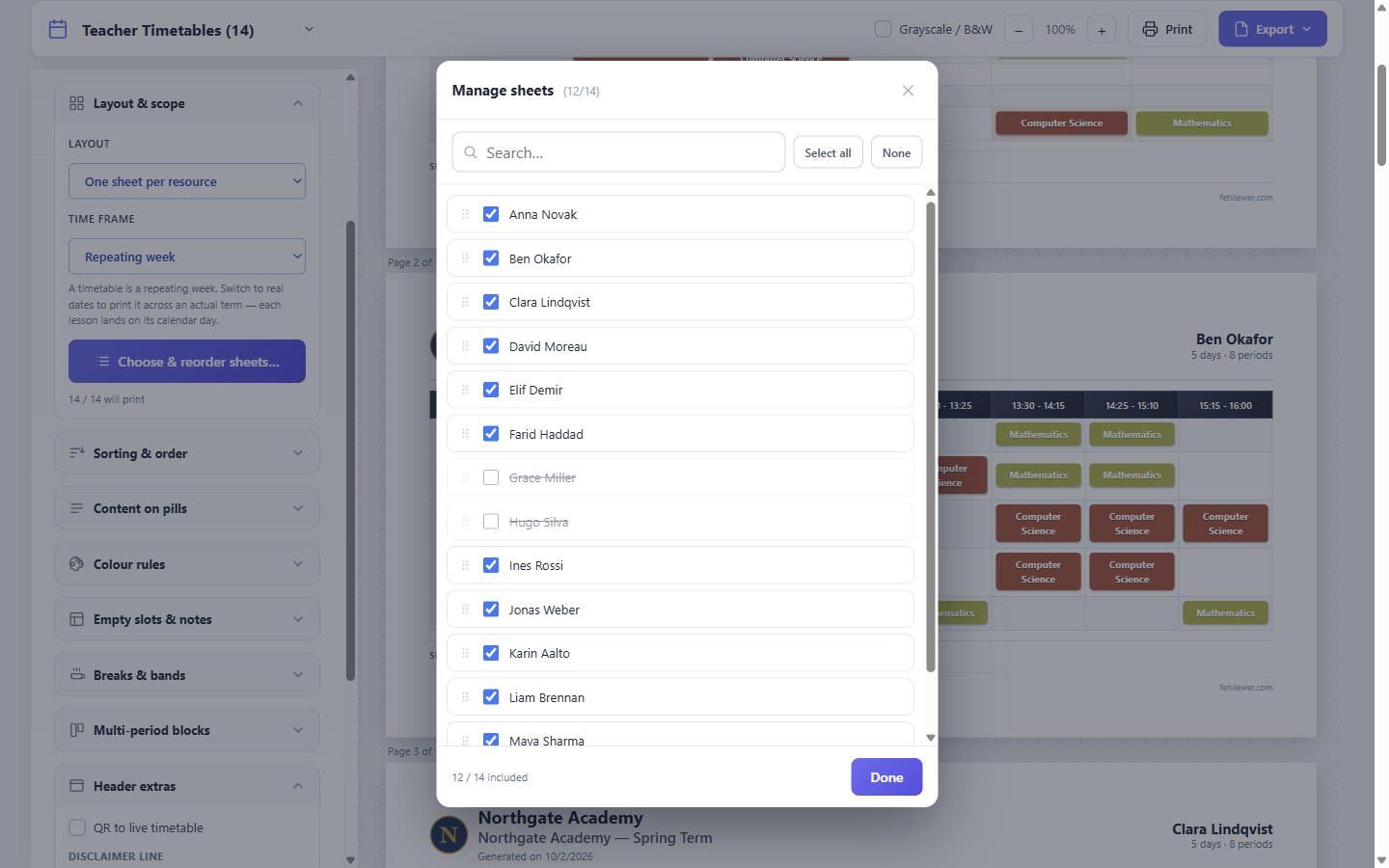
Not every print is for everyone. Choose & reorder sheets… opens the list of teachers. Untick the ones you do not need, and drag the others into the order you want.
DRAFT, until it is final
Most schools print a timetable more than once before it is final. Put a watermark on every page while it is a draft: DRAFT, CONFIDENTIAL or your own text. You can make the watermark bigger or smaller.
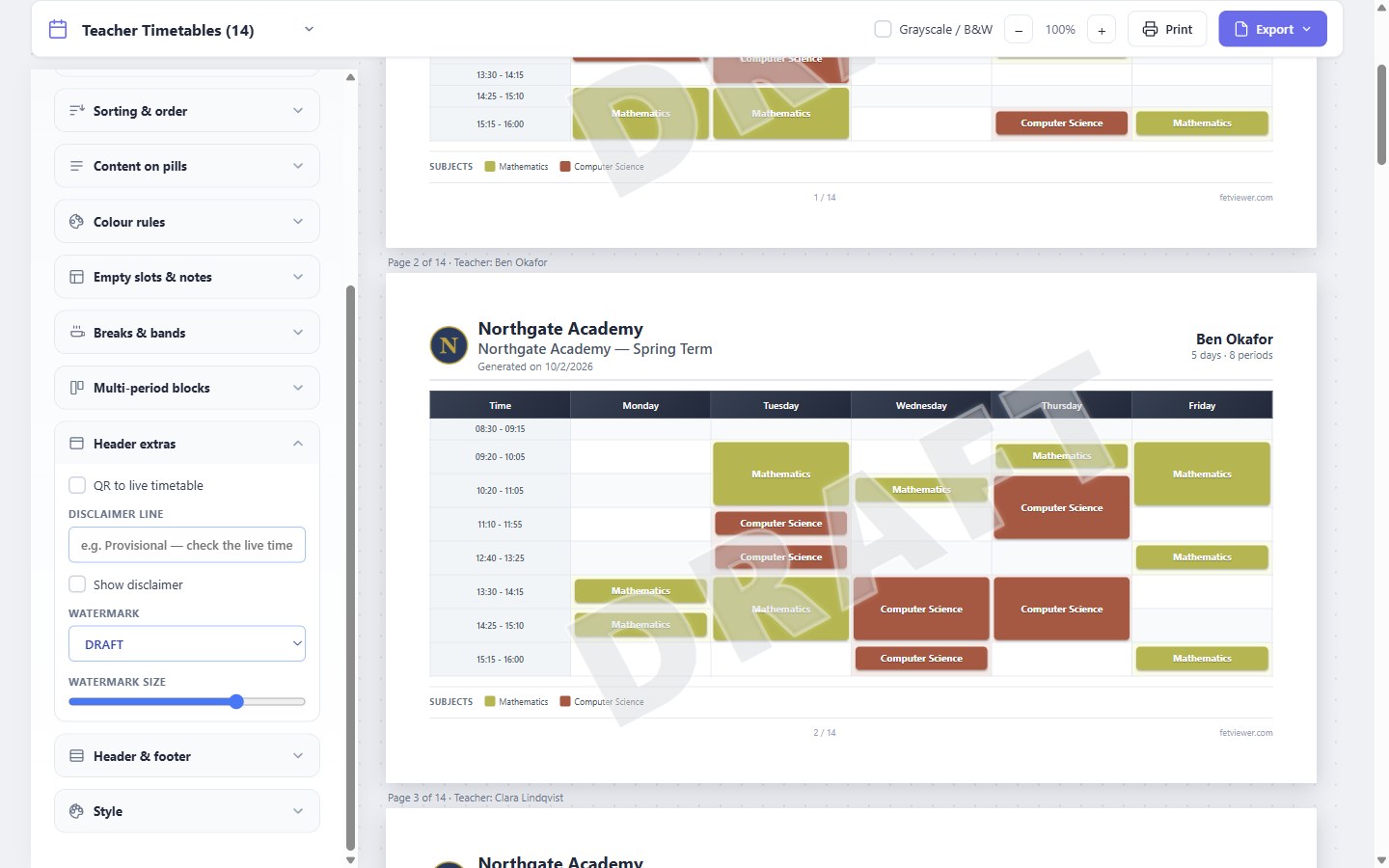
When the timetable is final, set the watermark to None and print again. Now the final version looks different from every draft on the wall.
One teacher needs something different
Sometimes one sheet needs a different look. A teacher wants bigger text, or the days as rows.
Click that sheet. A small editor opens for that sheet only. You can make the text bigger or smaller, turn the colours off, show the days as rows, choose what the activities show, or print only that sheet. The other sheets do not change.
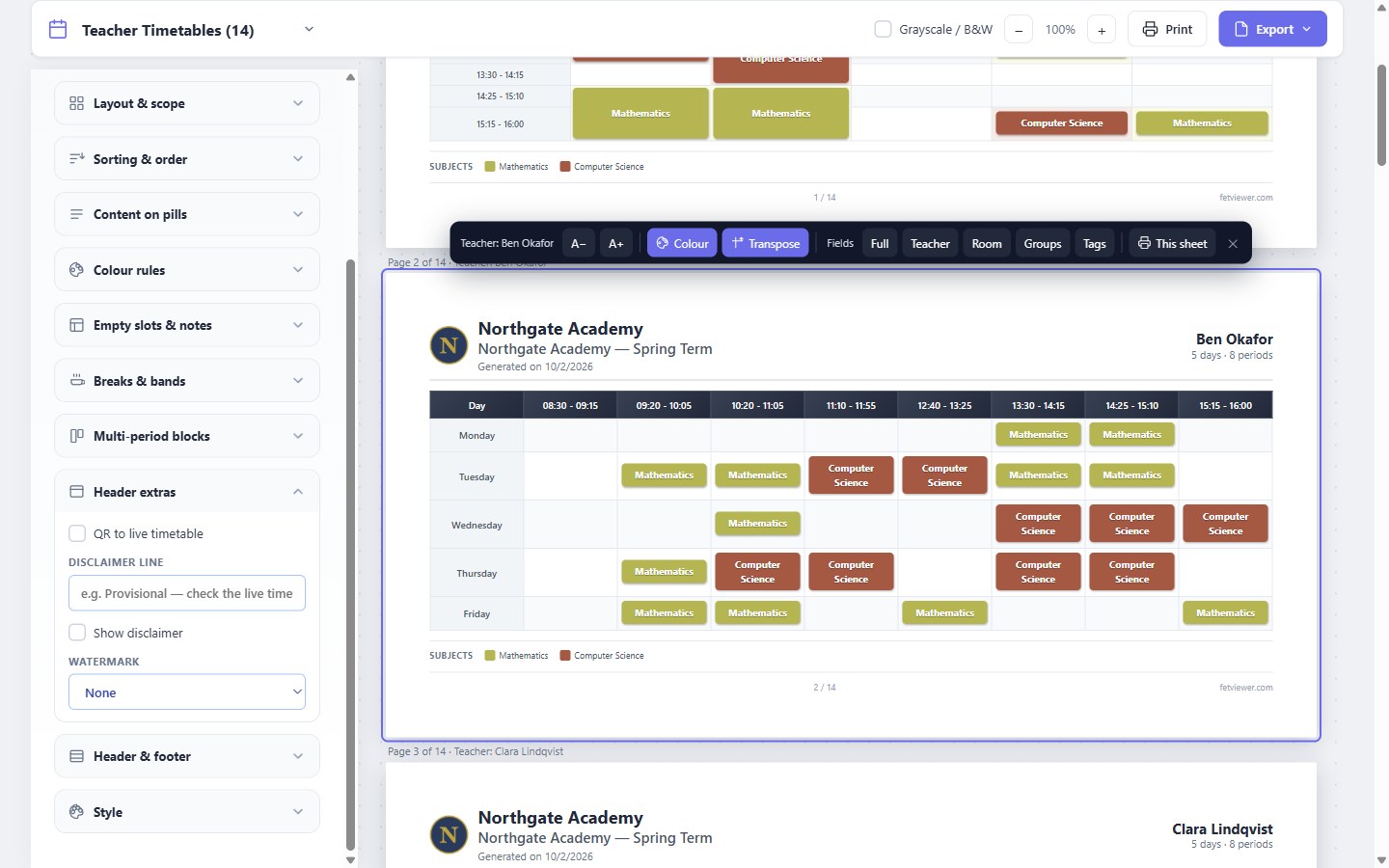
These changes stay while the page is open. They are not saved.
Your school on every page
The header of each sheet shows the school name and the school logo. Export gives you one PDF with every sheet, or a ZIP file with one PDF or one picture for each sheet.
There are also four ready-made looks under Presets: Detailed, Compact, Wall poster (A3) and Admin summary. Start from one of them, and change what you need.
Read more in The print designer and Choosing what goes on the page.
What each plan has
Printing, the watermark, the editor for one sheet and Fit to one page are on every plan, the free plan too. Your own logo is on Basic and higher. Without your own logo, a small QR code for FET Viewer is in the logo place, and you can turn it off. The combined PDF and the ZIP files are on Pro and Max. On every plan, you can also save a PDF from the print dialog of your browser.